Honestly, ignoring email security is a luxury nobody can afford anymore. You see data breaches in the news almost every day, and privacy laws are only getting stricter. Securing your Outlook inbox isn't just an IT buzzword it's a massive relief for anyone handling private information.
But what does "encrypting" an email even mean? And more importantly, how do you actually turn it on without spending hours on the phone with tech support? Whether you're running your own small business, dealing with strict corporate rules, or you just prefer keeping your conversations private, I’ve got you covered.
We're going to walk through the exact steps to lock down your messages so your inbox becomes as secure as a digital vault.
Quick tip: Don't assume encryption is only for Fortune 500 companies. Anyone can use Outlook’s built-in tools to block unwanted eyes from reading their mail.
What Does It Mean to Encrypt an Email?
Before we jump into the setup, let's clear up what's actually happening to your messages behind the scenes.
Email encryption is basically putting your conversation inside a digital safe. When you encrypt a message in Outlook, the software takes your normal text and scrambles it into a chaotic mess of random characters (known as ciphertext). The only person who gets to read the original message is the recipient and only if they hold the correct digital "key" to unlock it.
Why You Should Encrypt Your Emails
Privacy Protection: It actively stops hackers, snoops, and even the wrong recipient from reading things they shouldn't.
Regulatory Compliance: Working in healthcare (HIPAA) or finance (GDPR, SOX)? You usually don't have a choice encrypting is often legally required to avoid massive fines.
Identity Theft Prevention: Hiding attachments that have bank details or social security numbers is a huge step in preventing your identity from being stolen.
Integrity: Pairing encryption with a digital signature proves you actually sent the email and that nobody tampered with it along the way.
Did you know? A recent Microsoft Security Report pointed out that over 70% of data breaches kick off right in the inbox. Encrypting is arguably your best, most critical defense.
Two Main Types of Outlook Encryption
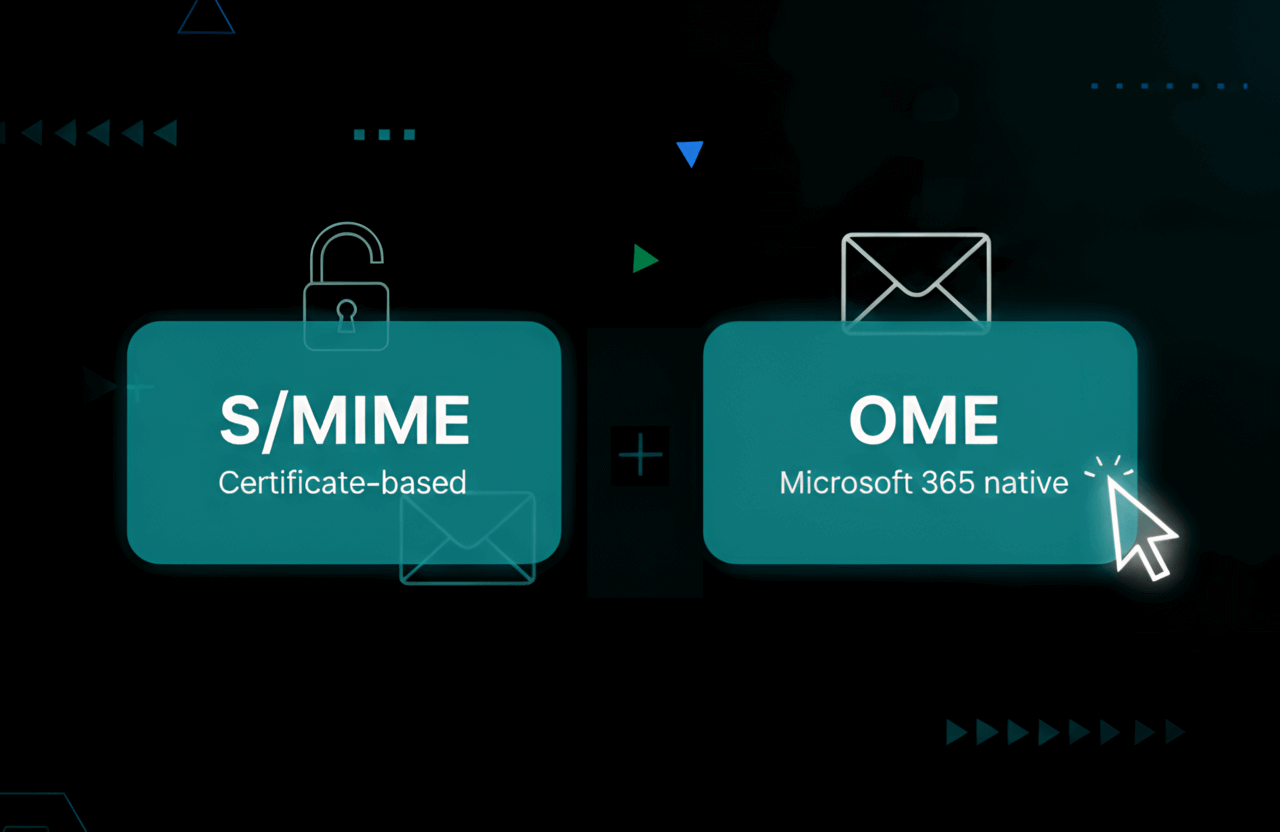
When you're figuring out how to secure your Outlook emails, you'll generally run into two options. Which one you pick depends mostly on your specific software version and what your company pays for.
1. S/MIME (Secure/Multipurpose Internet Mail Extensions)
This is the older, highly strict standard for securing messages and adding digital signatures.
Pros: Unbeatable security, and it completely verifies your identity as the sender.
Cons: It's kind of a headache to set up. You and the recipient both need compatible mail apps, plus you have to install a specific digital certificate (Digital ID) first.
2. Microsoft 365 Message Encryption (OME)
This is the newer, much smoother way of doing things if you're on a business Office 365 plan.
Pros: Super easy to use. Plus, it works perfectly even if the person you're emailing uses Gmail or Yahoo.
Cons: You need a higher-tier Office 365 Enterprise license (like E3 or E5), or you'll have to pay for a specific add-on.
Honestly, Office 365 Message Encryption is the way to go for most of us because it just works right out of the box. S/MIME is mostly for government workers or heavily regulated industries.
Further reading: Check out Microsoft’s official guide on Office 365 Message Encryption if you want to dive into the heavy technical details.
Method 1: How to Encrypt an Email in Outlook (Microsoft 365 / OME)
If you work in a typical office, this is probably what you'll use. It lets you send secure notes to anyone inside or outside your company without messing around with certificates.
Step-by-Step Instructions
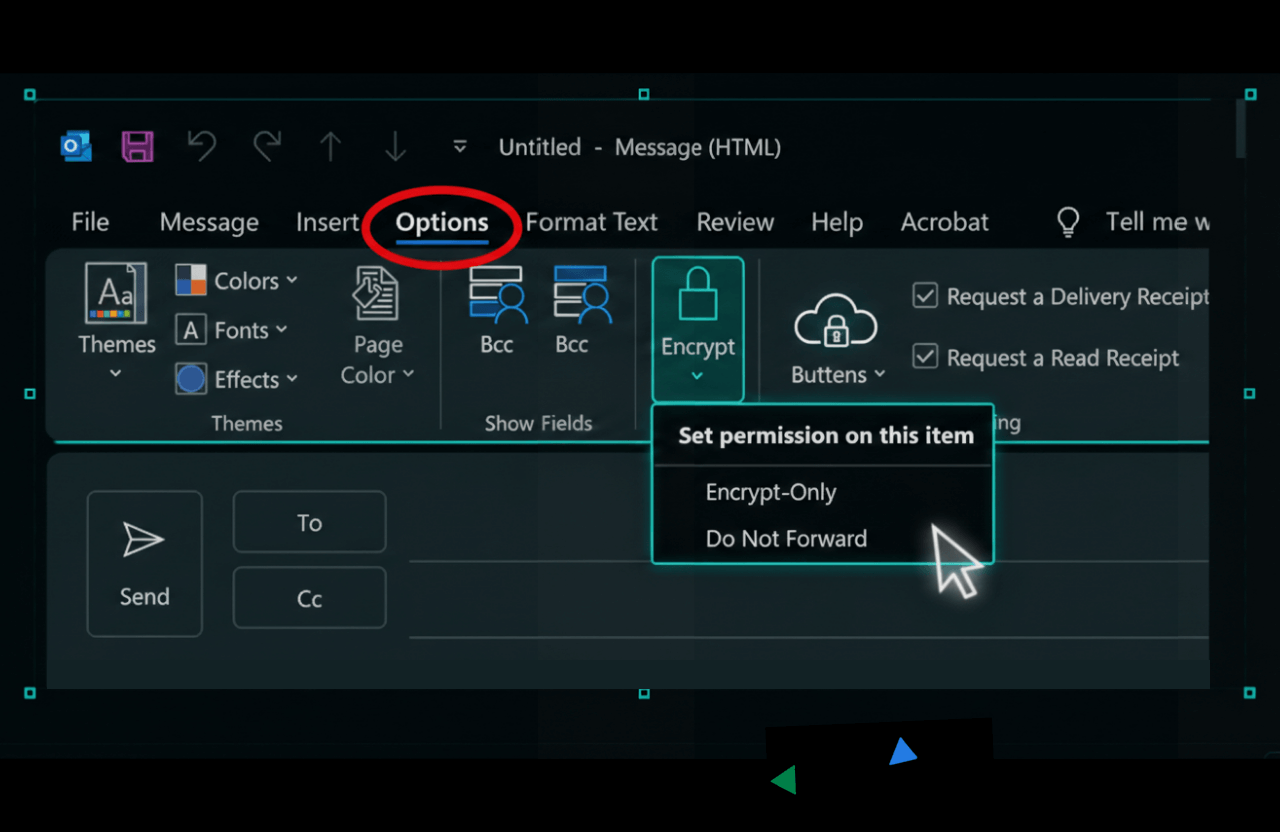
Start a Draft: Open Outlook and hit New Email.
Find the Options: Look at the ribbon menu at the top and click the Options tab.
Look for the Padlock: Find the button that says Encrypt (it has a tiny padlock icon next to it).
Pick Your Security Level: Click the little drop-down arrow next to it. You'll usually see:
Encrypt-Only: Secures the text, but the receiver can still forward or print the email.
Do Not Forward: The strict option. They can read it, but copying, forwarding, or printing is completely blocked.
Confidential \ All Employees: (Depends on your company) Keeps the email from being forwarded outside your organization.
Hit Send: Choose your setting, and a banner will pop up saying the message is encrypted. Type your message, add your files, and click Send.
Note: If you're frantically looking for the Encrypt button and don't see it, your IT team might have turned it off, or your current plan simply doesn't include the feature.
Method 2: How to Encrypt an Email in Outlook Using S/MIME
Not on an enterprise plan? Or maybe your industry demands hardcore certificate security? S/MIME is your backup plan. Fair warning: it takes a little setup before you can actually send anything.
Part A: Installing Your Digital Certificate (Digital ID)
You absolutely need a Digital ID before trying this. You can get one from your IT department or buy it from a provider like Comodo or Sectigo.
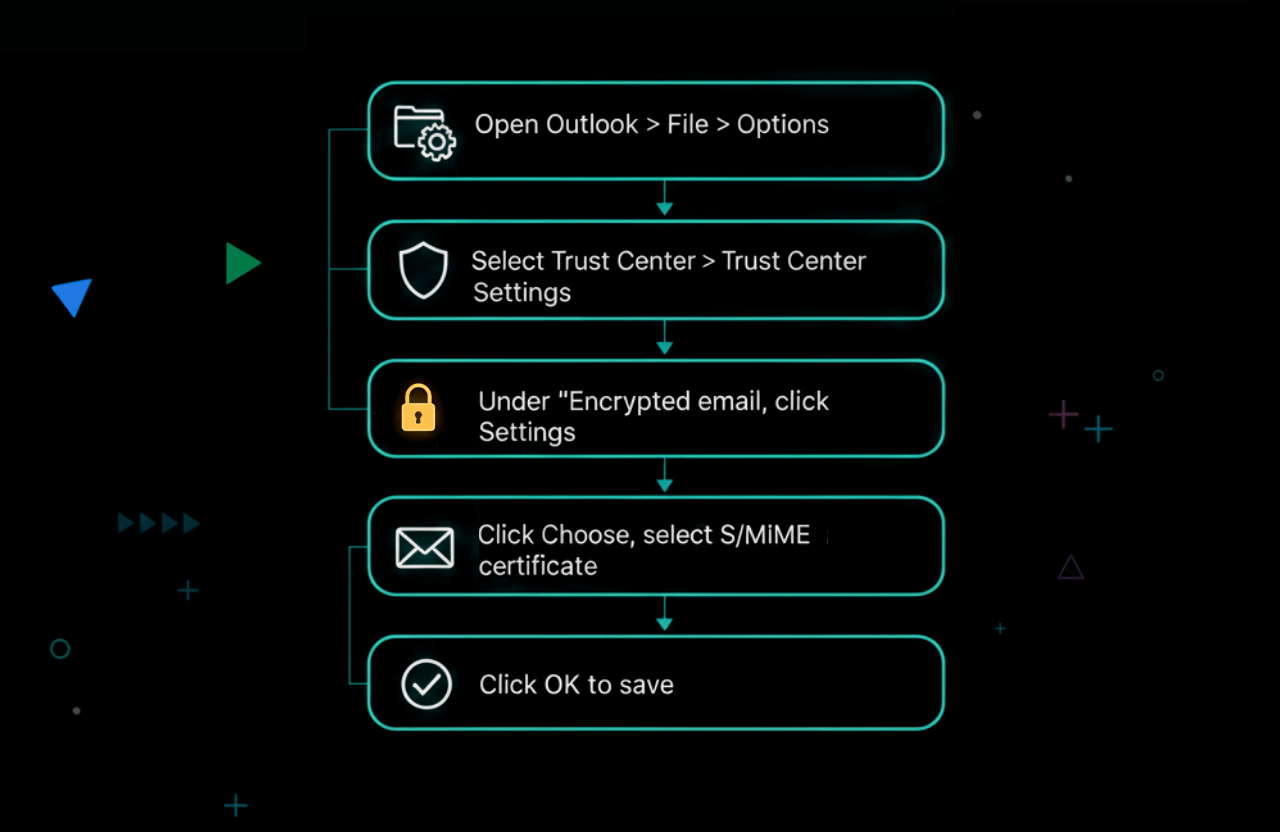
Open Outlook and head over to File > Options.
Click Trust Center on the left, then hit the Trust Center Settings button.
Go to Email Security.
Look under "Encrypted email" and click Settings.
Under Certificates and Algorithms, hit Choose to select the S/MIME certificate you already saved to your computer.
Click OK to save everything.
Part B: Sending the Encrypted Message
Got the certificate loaded? Great. Here is how to actually send a message:
Start Writing: Click New Email.
Options Tab: Switch over to the Options menu.
Turn it On: Click the Encrypt button, or click the tiny arrow in the corner of the "More Options" section to open the Properties window.
Security Check: Hit Security Settings and make sure the box for "Encrypt message contents and attachments" is checked.
Send It: Click Send.
Crucial catch here: You can't send an S/MIME email to someone unless you already have their public key. Usually, you get this when they send you a digitally signed email first.
Note: S/MIME is definitely clunkier to set up, but the security is rock-solid. That's exactly why hospitals and law firms use it.
How to Encrypt an Email in Outlook for Mac
Mac users, your screen looks a bit different. Here is the quick rundown for securing emails on macOS.
Start a Message: Click New Message.
Options Menu: Find the Options tab at the top.
Lock it Down:
Using Microsoft 365 OME? Click the Encrypt icon and choose either Encrypt-Only or Do Not Forward.
Using S/MIME? Click the Security tab, then pick Encrypt Message.
Double Check: You should see a lock icon near the subject line. If you do, you're good to go.
How to Encrypt an Email in Outlook on the Web (OWA)
Using your browser to check mail? It's actually incredibly simple to secure your messages online.
New Draft: Click New mail.
Find the Button: Right at the top (near Attach and Discard), click Encrypt.
Tweak Permissions: It usually defaults to standard encryption. Want to make it stricter? Click "Change permissions" and pick Do Not Forward.
Send Away: Finish typing your email and send it.
Encrypting Email Attachments in Outlook
The best part about all of this? When you secure an email, Outlook automatically encrypts the attachments too. Spreadsheets, confidential PDFs, photos they all get locked behind the same wall.
A few quick tips for handling attachments:
- Get in the habit of encrypting any email that has sensitive files attached.
- If you're super paranoid, you can password-protect the actual file (like a locked ZIP) before attaching it.
- Make sure you tell the recipient if they need a separate password to open the file.
Pro tip: Never, ever send the file password in the same email thread. Text it to them or just call them.
Outlook Encryption Options Explained
Seeing all those choices under the 'Encrypt' menu can be confusing. Here is the simple breakdown:
- Encrypt-Only: Scrambles the message while it travels, but once they open it, they can forward or print it like normal.
- Do Not Forward: Super strict. It locks the text and completely disables their forward, copy, and print buttons.
- Confidential / Confidential View Only: Usually a custom setting made by your IT team to protect company data.
- S/MIME: The heavy-duty certificate method. Requires both people to have digital IDs set up.
Tip: When in doubt, 'Encrypt-Only' or 'Do Not Forward' usually offers plenty of security without driving the recipient crazy.
What Does the Recipient See?
You're probably wondering what this looks like on the other end. That mostly depends on their email provider.
If the Recipient Uses Outlook / Microsoft 365
It's completely seamless. If they're signed in, the email decrypts itself automatically. They'll just see a little padlock icon no passwords needed.
If the Recipient Uses Gmail, Yahoo, or Others
They'll get a placeholder email saying they received a secure message from you. To read it, they generally have two choices:
Log in: Sign in using a Google or Microsoft account.
One-Time Passcode: Click a link to get a temporary code emailed to them. They type that code into a secure web page to read your note.
How Recipients Access Encrypted Emails
Here is exactly how people open your locked messages:
- Outlook or Microsoft 365 users: The email opens right in their usual app (phone or computer) with a padlock icon showing it's safe.
- Gmail, Yahoo, or other email services: They click a link that takes them to a secure Microsoft site. After proving who they are, they can view the message and download files.
- S/MIME recipients: As long as their certificate is set up, the email opens normally in their compatible app.
And yes, they can reply securely right from that portal, keeping the whole chain private.
Troubleshooting: Why Can't I Encrypt My Email?
Sometimes things just don't work. Here are the most common roadblocks and how to get around them.
1. The "Encrypt" Button is Missing
Can't find it under the Options tab? It's usually one of three things:
You don't have an Office 365 subscription.
Your specific plan (like a basic Home version) doesn't include it.
Your IT admin hasn't turned the feature on yet.
2. "Digital ID Missing" Error
If you get this pop-up, Outlook is trying to use S/MIME but can't find your certificate. You'll need to install one, or just switch over to the OME method if your account allows it.
3. Recipient can’t open encrypted email
This is usually an S/MIME issue. If they don't have your public key, they'll just get a weird smime.p7m file that won't open. Use Microsoft 365 Message Encryption for outside contacts to avoid the headache.
4. Attachments won’t open
Strict company firewalls sometimes block weird file types. Stick to PDFs or Word docs, and definitely don't attach executable files.
5. Encryption not available for certain accounts
Free accounts like @outlook.com or @hotmail.com have limited options. You might need a paid plan for the heavy-duty stuff.
Resource: Still having trouble? Microsoft’s official troubleshooting guide has more detailed fixes.
Best Practices for Email Security
Clicking 'Encrypt' is a great start, but keeping your inbox safe takes a bit more effort. Try these habits.
Use "Do Not Forward" for Highly Sensitive Data
Sending trade secrets or HR documents? Basic encryption isn't enough. Use "Do Not Forward" so nobody can accidentally pass the info along to unauthorized people.
Encrypt Attachments
Remember, the whole email gets locked down, attachments included. You don't need to manually zip and password-protect everything if the email itself is encrypted.
Combine with Two-Factor Authentication (2FA)
Encryption protects the email while it's moving. 2FA protects your actual account. If a hacker gets your password, they can easily read your "secure" sent folder. 2FA keeps them out completely.
Don't Encrypt Everything
Let's be honest, encrypting every single message is just annoying for the people you work with. Save it for financial data, legal stuff, or personal info. The "donuts in the breakroom" email can stay unencrypted.
Outlook Encryption and Third-Party Integrations
Plenty of companies use outside tools to beef up Outlook’s security. Some common ones are:
- Data Loss Prevention (DLP): Automatically locks down emails if someone types a sensitive keyword (like "credit card").
- Secure messaging add-ins: Apps like Virtru or Mimecast plug straight into Outlook for extra tracking and security features.
- Compliance monitoring: Connecting Outlook to compliance platforms helps IT keep an eye on secure traffic.
Before you buy anything, just make sure it actually plays nice with your specific Microsoft setup.
Encryption Policies for IT Admins
If you're the one running IT, you can force these rules right from the admin center:
- Make every outgoing email encrypted by default.
- Set up DLP rules that trigger encryption automatically based on what's in the message.
- Pull reports to see how often people are actually using the secure features.
- Build custom permission templates for your staff.
Need to get this rolling? Check out the Office 365 Message Encryption admin guide.
Outlook Encryption vs. Other Email Clients
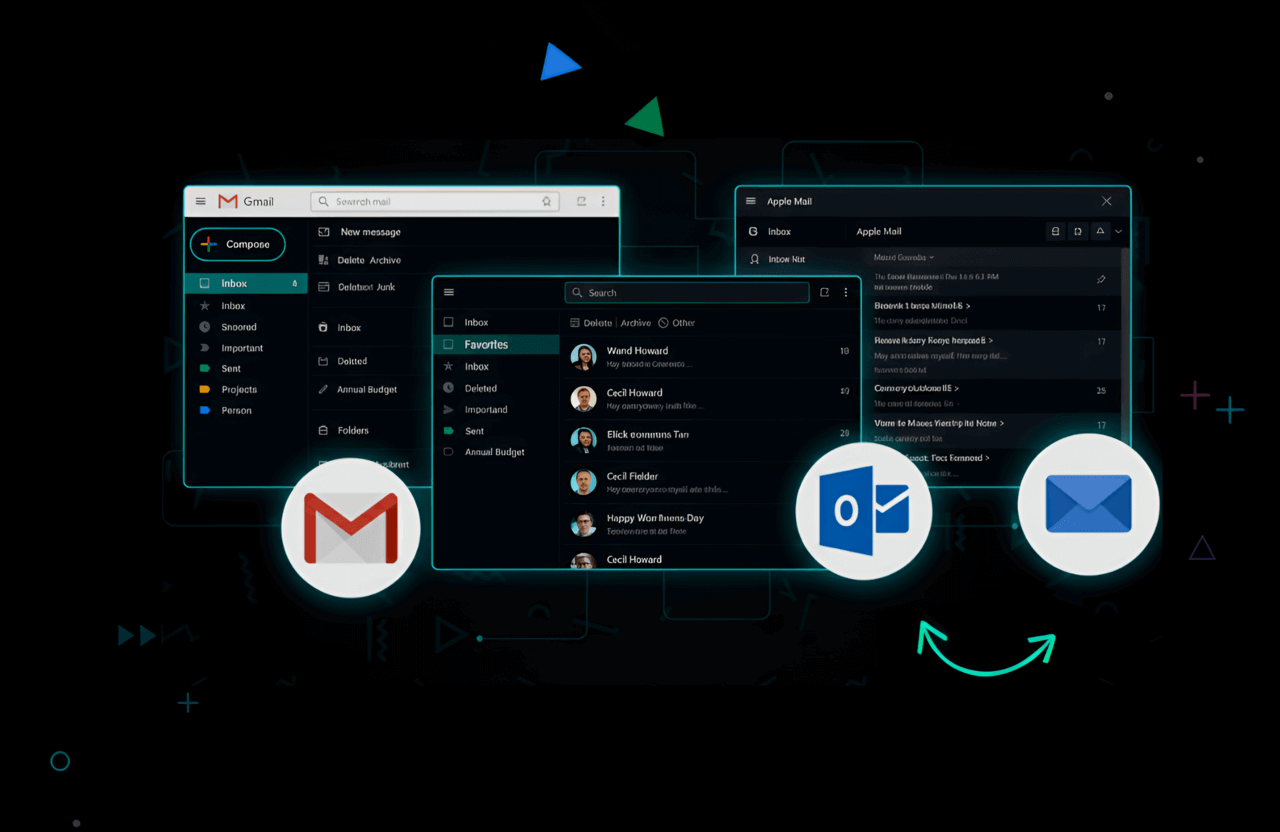
How does Outlook actually compare to Gmail or Apple Mail when it comes to keeping things locked down?
| Client | Built-in Encryption | Third-Party Support | Ease of Use |
|---|---|---|---|
| Outlook | Yes (OME, S/MIME, IRM) | Strong (Zix, Virtru, etc.) | Very Easy |
| Gmail | Yes (TLS, Confidential Mode) | Moderate (Virtru, FlowCrypt) | Easy |
| Apple Mail | Yes (S/MIME, PGP) | Good (GPGTools, others) | Moderate |
When you look at the options, Outlook’s deep connection with Microsoft 365 makes it one of the most painless, heavy-duty choices for business use.
Frequently Asked Questions (FAQ)
Can I encrypt an email in Outlook sending to Gmail?
Yes, absolutely. If you use OME, sending a locked email to a Gmail address is super easy. The recipient just clicks a link and signs in with their Google account to read it.
Does Outlook encryption work on mobile?
It sure does. Whether you're on an iPhone or Android, you can just tap the three dots in a draft and hit Encrypt. You still need a compatible Office 365 plan, though.
Is Outlook encryption end-to-end encrypted?
If you use S/MIME, yes it's true end-to-end because only you and the receiver have the keys. With the standard Microsoft method (OME), Microsoft actually holds the keys. Your data is safe while traveling and resting, but Microsoft's servers do the processing.
What is the difference between "Encrypt-Only" and "Do Not Forward"?
Encrypt-Only scrambles the text to block hackers, but the person who receives it can still forward or print it. Do Not Forward is the ultimate lockdown it completely disables their ability to copy, print, or send it to anyone else.
How do I encrypt an email in Outlook without a certificate?
Stick to the Microsoft 365 Message Encryption (OME) method. It runs off your account subscription, so you don't have to deal with manually installing S/MIME certificates.
Can I encrypt emails to recipients outside my organization?
Definitely. OME lets you send secure notes to Yahoo, Gmail, or custom business domains. They'll just read it through a safe Microsoft web page.
Additional Resources and Guides
If you're diving deep into compliance, definitely chat with your IT admin or browse through Microsoft’s official docs.
Ready to Secure Your Outlook Emails?
Whether you want the simplicity of Microsoft 365 or the hardcore technical validation of S/MIME, the biggest step is just starting. Take a look at your Outlook settings today, see what your license allows, and send your next sensitive file knowing it's fully protected.
Make secure emailing a habit. And if you're looking to upgrade your digital security even more, feel free to poke around our other guides and resources.