
Let’s be real for a second. Your inbox is basically a chaotic digital filing cabinet holding your entire life together. You've got everything in there—from super important business contracts and scary legal notices to that one concert ticket you desperately need for this weekend. But what actually happens when you need a hard, unchangeable copy of a message? Like, a file you can save straight to your hard drive and know it’s safe forever? That’s exactly when figuring out how to save an email as a PDF becomes an absolute lifesaver.
I love PDFs because they never mess up your formatting. They look exactly the same whether you open them on a massive desktop monitor or a tiny phone screen. They lock your original text in place, and honestly, they're just incredibly easy to share. Whether you're trying to archive annoying tax receipts, building a paper trail for a dispute, or just hoarding sensitive conversations, turning those emails into PDFs is one of those digital skills you just have to know in 2026.
So, let's cut the fluff. I'm going to walk you through exactly how do you save an email as a pdf on pretty much any platform you can think of. We're talking Gmail, Outlook, Apple Mail, and even your phone. We'll even dive into the annoying stuff—like how to fix those weird formatting glitches and why clicking the "Print" button is actually the big secret to making all of this work. Let’s get into it.
Quick tip: Treat PDFs as the absolute gold standard for saving your files. They're secure, usually pretty small in file size, and the best part? You don't need an internet connection to read them later. Saving your emails like this pretty much guarantees you won't lose your critical info.
Why Save Emails as PDFs?
Before we start clicking buttons, let's quickly talk about why you should even bother doing this. Why is a PDF file so much better than just taking a sloppy screenshot or forwarding the email to a backup address?
Immutability and Security: If you forward an email to someone, the text can easily be tweaked or edited. A PDF? It's basically a digital photograph of your email taken at that exact second. It’s way harder to tamper with, which is exactly why lawyers and HR folks demand it.
Universal Compatibility: Standard email files (like
.msgor.eml) are a massive headache because you need a specific email app just to open them. A PDF, on the other hand, opens on almost anything—your laptop, your phone, or even an e-reader—without forcing you to install extra software.Formatting Preservation: When people search for "how do you save an email as a pdf," they usually just want to make sure the logos, bold text, and neat layouts don't get ruined. PDFs freeze that visual design perfectly.
Offline Access: Once that file is sitting safely on your computer or dropped into your cloud storage, you no longer need Wi-Fi or access to your old email account to read it.
Whether you're running a business, finishing up college, or just trying to get your digital life somewhat organized, saving your messages as PDFs is a massive workflow upgrade.
How Do You Save an Email as a PDF in Gmail
Gmail is arguably the biggest email service on the planet, but Google somehow forgot to give us a simple "Download as PDF" button. Seriously. Instead, we have to trick the system by using the print menu. Here is the workaround for both your computer and your phone.
Gmail on Desktop (Windows and Mac)
If you're sitting at your computer, the process is actually super easy once you know where to look.
Open the Email: Log into your Gmail account and open up the exact conversation you're trying to archive.
Locate the "More" Menu: Find the three little vertical dots (⋮) hiding in the top-right corner of the email itself. Just a quick heads up: Don't click the dots in your Chrome browser menu; you want the ones right next to the reply button inside the actual email.
Select Print: Hit "Print" in that dropdown menu. A new window will pop up showing you what the email would look like on paper.
Change Destination: This is where the magic happens. Look for the box labeled "Destination" or "Printer." It probably shows your actual home or office printer right now.
Select "Save as PDF": Click that dropdown menu and switch it to "Save as PDF" (if you use Chrome or Edge) or "Microsoft Print to PDF" (if you are on Windows). Mac users, you just need to look for the PDF dropdown menu at the bottom of the print screen and hit "Save as PDF."
Save: Hit "Save," pick a folder, give it a name you'll actually remember, and you are good to go.
Gmail on Mobile (Android and iOS)
A lot of people get stuck trying to do this on their phones because the mobile app looks completely different. So, how to save an email as a pdf when you are nowhere near your keyboard?
For Android:
Open up the Gmail app and tap the email you need.
Tap the three-dot menu up in the top-right corner (again, make sure it's the one for the specific email, not your app's main settings).
Tap Print.
Look at the very top for the printer selection menu, and swap it to Save as PDF.
Tap that round PDF download button to drop the file straight onto your phone's storage.
For iOS (iPhone/iPad):
Open the message inside the Gmail app.
Tap the three-dot icon.
Hit Print All (or just Print if it's only a single message).
The iOS Gesture Trick: When the print preview pops up, do not look for a save button yet. Instead, place two fingers on the little preview image of the paper and do a pinch-out gesture (like you are zooming in on an Instagram photo).
Boom! That simple swipe converts the preview into a full PDF file. Now, just tap the Share icon (the little square with an arrow pointing up) in the top right.
Scroll down your options and tap Save to Files.
Pro tip: Keep in mind that doing this won't save your attachments inside the PDF. You'll need to download those files separately to keep everything together.
How to Save an Email as a PDF in Outlook (Web & Desktop)
Microsoft Outlook is pretty much the undisputed king of corporate emails. Thankfully, saving your messages is a very similar experience whether you're using the web version, the clunky desktop software, or the mobile app.
Outlook Desktop App (Windows)
The desktop version of Outlook is super powerful, but surprisingly, "PDF" isn't listed anywhere under the normal "Save As" menu. You have to route it through the printer setup.
Open Outlook and double-click your email so it pops out into its own separate window.
Head up to File > Print.
Under the "Printer" menu, change your selection to Microsoft Print to PDF.
Click that giant Print button.
Don't panic, nothing will actually print on paper. Instead, a window will pop up asking where you want to save the digital file.
Type in a file name and hit Save.
Note: If you don't see the 'Microsoft Print to PDF' option, you might need to dive into your Windows system settings to enable the feature.
Outlook for Mac
If you're on a Mac, your life is a little bit easier simply because Apple bakes PDF tools right into the operating system.
Open the email.
Hit
Command + Pon your keyboard, or just go to File > Print.Look at the bottom-left corner of the print window for a small PDF button.
Click it, and select Save as PDF from the list.
Outlook Web App (OWA Outlook.com, Office 365)
If you usually check your work email through a web browser, here is your game plan:
Log into Outlook.com or your Office 365 portal.
Click the three dots (...) at the top of the reading pane (right next to the Reply and Forward buttons).
Select Print.
A clean preview will open up. Click Print one more time in the top left corner.
When your browser's print window finally appears, just make sure the destination is set to Save as PDF.
How to Save an Email as a PDF in Apple Mail (Mac & iOS)
A lot of Apple users find themselves constantly asking, "how do you save an email as a pdf" simply because Apple loves hiding cool features behind screen gestures instead of using obvious buttons. Once you know the trick, though, it's actually brilliant.
On Mac
- Open the default Mail app and click on your message.
- Head to File > Export as PDF (if you happen to be running macOS Sonoma or newer). Alternatively, you can always use File > Print.
- If you go the Print route, just click that handy PDF button in the bottom-left corner and pick Save as PDF.
- Choose exactly where you want to save it and type in a decent name.
On iPhone/iPad (iOS/iPadOS) The "Print-to-Zoom" Method
This is hands down my absolute favorite hidden trick for iPhone users.
Open Mail: Open the standard blue Mail app and locate the message.
Tap Reply/Forward: Hit that curved arrow icon sitting at the bottom right of your screen.
Scroll to Print: When the menu slides up, swipe all the way down to the bottom and tap Print.
The Zoom Trick: On the "Printer Options" screen, you'll see a tiny preview of the document at the bottom. Put two fingers on that image and pinch outwards.
Conversion: The screen will briefly flash white, expanding the image to fill your entire screen. Congratulations, you just created a PDF.
Save: Tap the Share icon (the square with the upward arrow) up in the top right corner.
Hit Save to Files. You can drop it directly into "On My iPhone" or sync it with "iCloud Drive."
Why This Method is Superior
Using the iOS "Print-to-Zoom" gesture is honestly the best way to handle this on a phone. It strips out all the ugly app menus and borders, leaving you with a perfectly clean, easy-to-read document.
Quick tip: Don't forget you can immediately AirDrop that newly created PDF right over to your Mac if you need to work on it there.
How to Save an Email as a PDF in Yahoo Mail
Open up the message inside Yahoo Mail on your web browser.
Find the Print icon—it's usually sitting right in the middle of the toolbar just above your email (or you can just hit
Pon your keyboard).If a box pops up asking if you want to "Print just this email?" or "Print conversation?", go ahead and choose "Print conversation" if you really need to save the entire back-and-forth thread.
Your browser's standard print screen will pop up.
Change your printer destination to Save as PDF.
Hit Save.
Note for Yahoo App users: If you are using the Yahoo app on your phone, it works almost exactly like Gmail. Tap the "More" menu, hit "Print," and choose your phone's PDF saving option.
How Do You Save an Email as a PDF on Android & iOS (Mobile Devices)
What if you don't use Gmail or Apple Mail? If you use the default Samsung Email app or some other third-party client, don't worry. Android and iOS handle printing in a very standardized way across the board.
Open whatever email app you prefer to use.
Tap to open the specific message.
Hunt down the menu button (it's almost always three dots somewhere in the corner of the screen).
Select Print.
Look at the top of the screen for a dropdown menu that says "Select a printer."
Swap that out for Save as PDF.
Tap the download icon (it usually looks like a blue or yellow circle with a down arrow, or maybe a vintage floppy disk).
Pick a folder in your "Downloads" or "Documents" and save it.
Note: Some older Android phones might actually make you download a free PDF printer app from the Play Store if you don't see the option natively.
How to Save an Email as a PDF Using Any Browser
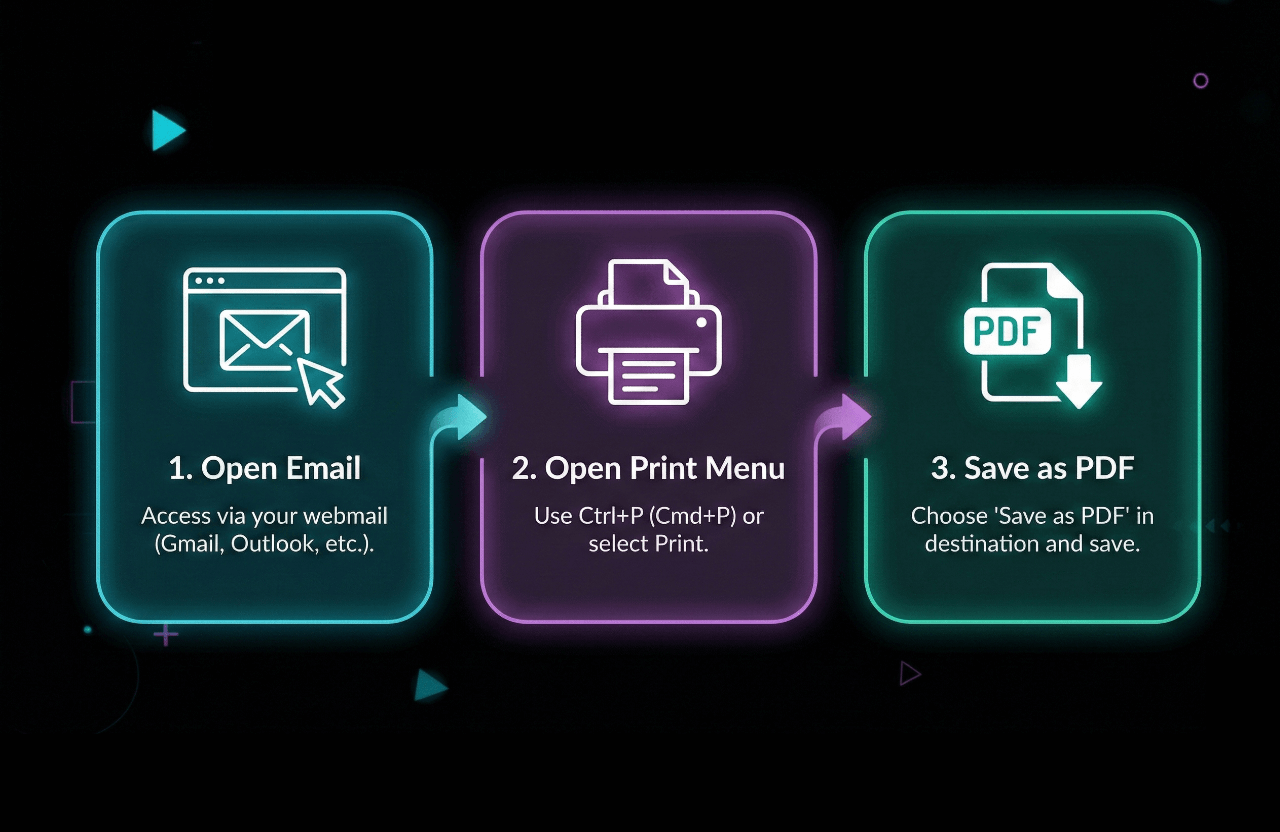
Here is a neat trick: basically every modern web browser (Chrome, Safari, Edge, Firefox) has a built-in feature to turn any webpage into a PDF, and that absolutely includes your webmail:
- Open your email in the browser as usual.
- Hit Ctrl+P (if you're on Windows) or Cmd+P (if you're on a Mac) to force the print menu open.
- Change the printer dropdown to Save as PDF or Microsoft Print to PDF.
- Click Save and choose where you want it to go.
This is a foolproof method that works for almost any niche email service out there, from ProtonMail right down to Zoho Mail.
How to Save an Email with Attachments as PDF
Here is the frustrating reality of exporting emails: while the PDF will capture all the text and inline photos, it will not automatically embed your attachments. Here is the best way to handle that headache:
- Download attachments separately: You literally have to click and download each attached file (like Word docs or spreadsheets) straight to your computer.
- Combine files (optional): If you desperately want everything in one neat package, you can use a PDF editor like Adobe Acrobat (or a free web alternative) to merge the email PDF and the downloaded attachments into a single mega-file.
- Archive together: The simplest route? Just create a specific folder on your computer and drop both the email PDF and the raw attachments in there together. It saves so much time.
Advanced tip: Yes, there are crazy expensive legal discovery tools that can export an email and its attachments as one flawless PDF package. But for normal day-to-day use, manually downloading them is by far your best bet.
Advanced Tips and Tools for Saving Emails as PDFs
- Batch Export: If you need to back up years' worth of emails, doing it one by one is pure torture. Look into desktop tools like MailStore Home (for Windows) or Emailchemy to rip your entire mailbox into PDFs.
- Automated Workflows: You can actually set up robots to do this for you. Services like Zapier or Make can watch your inbox and automatically save specific incoming emails as PDFs straight into your Dropbox account.
- PDF Editors: Grab a good PDF editor so you can black out (redact) sensitive passwords or sign documents before you forward them to someone else.
- Cloud Storage: Ditch the hard drive. Save your PDFs directly to Google Drive, iCloud, or OneDrive so you can search through your archives from any device, anywhere.
If you're staring at a folder stuffed with 300 receipts or a massive chain of legal emails, doing this manually is going to ruin your weekend. Try these batch strategies instead:
How to Save Multiple Gmail Emails as PDFs
Google doesn't give you a native "bulk export to PDF" button, but you can definitely work around it:
- Print conversations: If an email chain has 20 replies, just open the whole thread and hit print. It will magically compile the entire conversation into one chronological PDF.
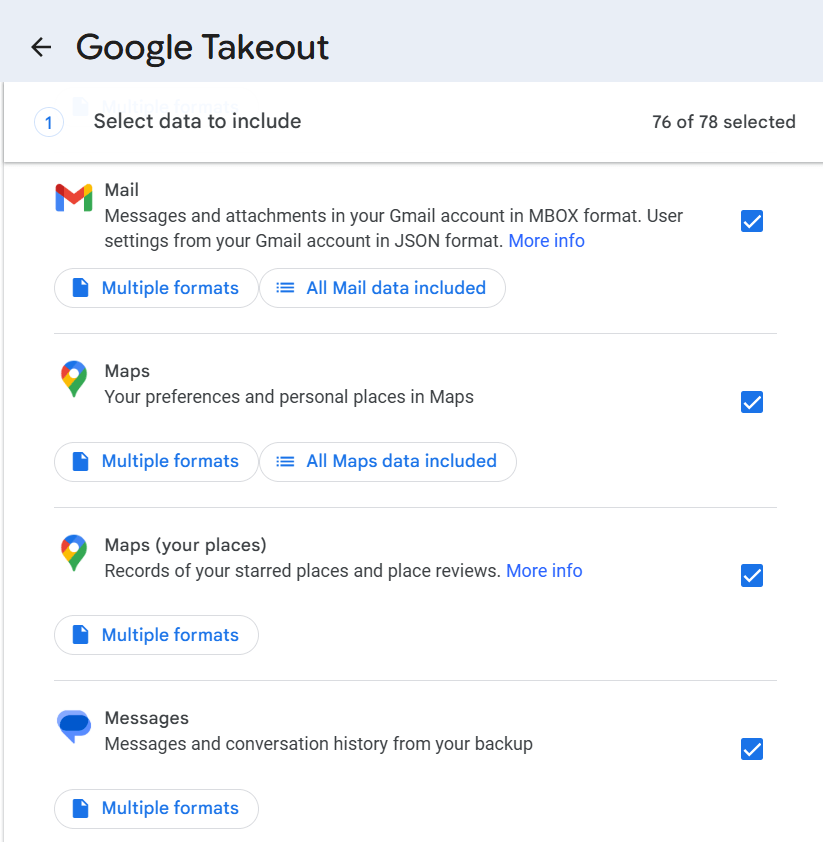
- Use Google Takeout: If you are completely shutting down an account, Google Takeout lets you download your entire mailbox. It saves it in an MBOX format, which you can later convert to PDF using third-party software.
- Third-party tools: There are some solid Chrome extensions out there, like Save Emails to PDF by cloudHQ, that actually let you check off multiple emails and batch-save them all at once.
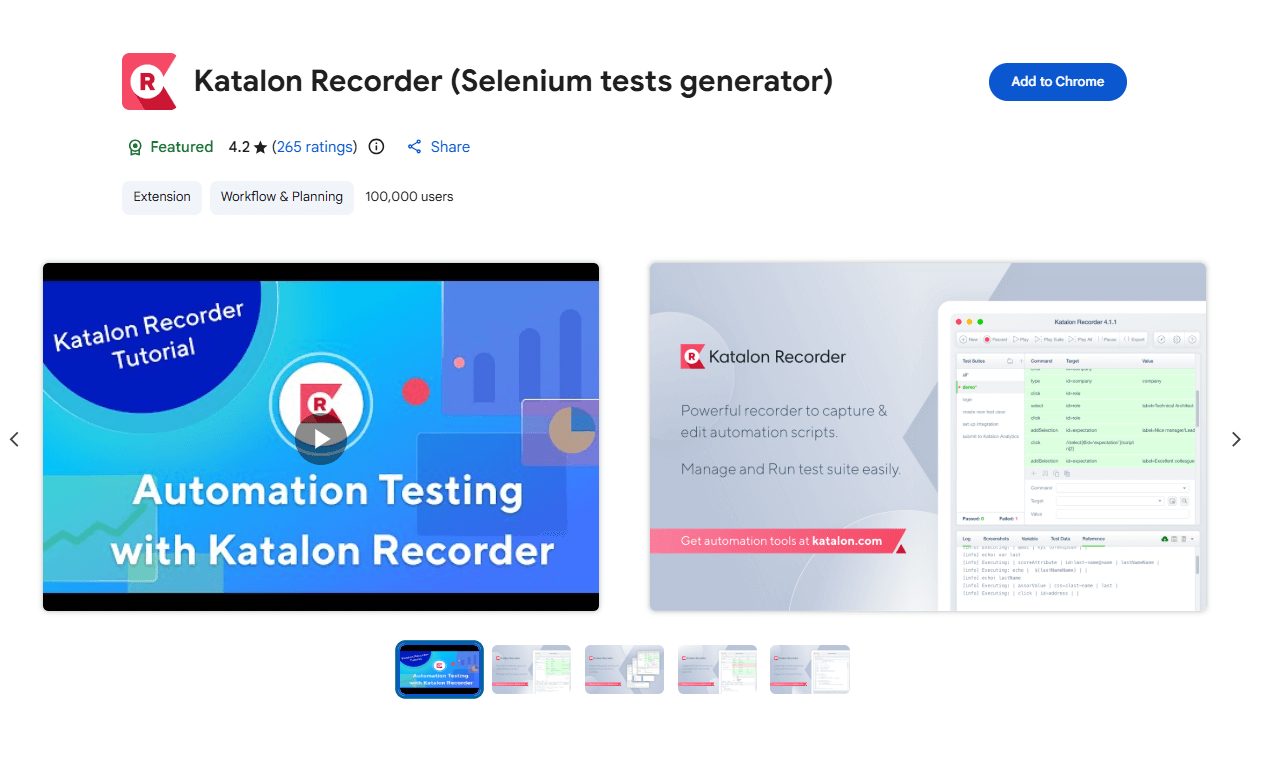
Privacy concerns: Just remember, installing a third-party extension means you are giving a company permission to read your inbox. Do your research before clicking install.
How to Save Multiple Outlook Emails as PDFs "Memo Style"
If you are using the Outlook Desktop app, you are in luck. Just hold down the Ctrl key (or Command on a Mac) and click on several emails in your inbox list. With them all highlighted, go to File > Print. Outlook is smart enough to treat the whole batch as one giant print job. Pick Microsoft Print to PDF, and it will stitch them all together into one really long document.
Troubleshooting Common Issues
Even if you perfectly follow the steps for how do you save an email as a pdf, tech glitches happen. Here is how to fix the most annoying issues you might run into.
"My PDF is cut off at the margins"
This is incredibly common, and it's called "clipping."
Fix: When the print window is open, hunt for a setting called "Scale" or "Scaling." Change it from "Default" (or 100%) to "Fit to width" or "Fit to paper." This basically forces your computer to shrink the text so it actually fits on the digital page.
"The images aren't showing up"
Most email apps block images from loading automatically to protect you from tracking pixels.
Fix: Before you hit print, scroll to the very top of the email message and click "Display images below" or "Always display images from this sender." Make sure the images actually load on your screen, then try saving to PDF again.
"The file is too big"
If someone has a massive, high-res photo in their email signature, your PDF file size is going to explode.
Fix: If your print settings have a "Quality" dropdown, turn it down. If the file is already saved and it's too big to email, just run it through Adobe's free online PDF compressor tool to shrink it down to a normal size.
"PDF Option Not Available"
- Fix: Your browser or app is probably just out of date. Run an update. If you are on a very old Windows machine, you might actually need to download and install a free PDF printer driver from the web.
Security and Privacy Considerations
- Confidential Information: Because PDFs are so incredibly easy to share, make absolutely sure you've blacked out sensitive bank numbers or passwords before emailing them to someone else.
- Password Protection: If you are saving highly confidential files, use a PDF editor to lock the document with a password so nobody can snoop around.
- Compliance: If you work in medicine or finance, don't just export emails wildly. Check your company's data retention policies first to make sure you aren't breaking strict compliance rules.
Frequently Asked Questions (FAQ)
Can I save emails as PDFs on my phone?
Absolutely! The major email apps on both iOS and Android (like Gmail, Apple Mail, and Outlook) all let you convert your messages to PDFs by simply using their built-in print or share menus.
Can I automate saving emails as PDFs?
You sure can. If you hook up third-party services like Zapier or cloudHQ, you can build custom rules that automatically turn incoming emails from your boss or a specific client into PDFs.
Is saving emails as PDFs secure?
A PDF is exactly as secure as the laptop or cloud folder it is saved in. If the email contains super sensitive data, your best move is to add a password to the PDF file itself to keep it locked down.
Can I save an email as a PDF with the attachments included?
Usually, no. The standard "Print to PDF" trick only captures the text and layout of the email body. It won't save the actual Excel sheet or Word doc attached to it. You have to download those attachments on your own, or buy heavy-duty software like Adobe Acrobat Pro to merge them together later.
How do you save an email as a pdf without the header information?
If you're using Chrome or Edge, look closely at the print settings for a little checkbox that says "Headers and footers." Uncheck that box! It strips away the ugly timestamps, web URLs, and page titles from the top and bottom edges, leaving you with a beautifully clean document.
Is saving an email as a PDF legally binding?
For most everyday disputes, yes. Courts widely accept PDFs because they lock the formatting and leave a clear digital footprint. That said, if you are involved in a massive corporate lawsuit, forensic experts usually want the raw .eml or .msg files to verify the hidden metadata.
Why can't I find "Save as PDF" on my iPhone?
Because Apple likes to be tricky! iOS doesn't give you a clear "Save as PDF" button in the print menu. You have to do a pinch-to-zoom gesture directly on the little print preview image to magically transform it into a PDF file.
Best Practices for Email Archiving
Want to keep your digital life from turning into a chaotic mess? Try these three rules:
Standardize Your Naming Convention: Please, do not leave the file named "Gmail - Subject.pdf". Rename it right away to something like
YYYY-MM-DD - Subject - Sender(for example: '2026-03-15-Invoice-AcmeCorp-Aramco.pdf'). You will thank yourself six months from now when you're trying to find it in a search bar.Save Attachments Separately: As we mentioned, printing to a PDF usually just prints the *name* of the attachment, not the file itself. Always pull those files down separately so you don't lose them.
- Organize by folder: Toss your fresh PDFs into specific folders labeled by client, project, or tax year so you aren't digging through a massive "Downloads" folder.
Back Up Your PDFs: Do not just let these files sit on your laptop's hard drive—hard drives crash. Push them up to Google Drive, Dropbox, or OneDrive so you have a safe, redundant backup.
- Check formatting: Always, always open the PDF and check it before you permanently delete the original email from your inbox. Sometimes the text gets cut off!
Related Guides and Tools
- How to Encrypt an Email in Outlook
- Plagiarism Checker Free Online Tools
- Does Copyright Apply To Screenshot Images?
- WhatsApp Web Official Link and How to Open It in Your Browser
Ready to Save Your Emails as PDFs?
Whether you are trying to preserve a make-or-break business contract, organizing your tax receipts, or just want a permanent record of an important conversation, saving emails as PDFs is quick, foolproof, and completely universal. If you follow the steps above, you'll be able to confidently pull an email out of any app or device and save it forever.
If you want to keep leveling up your digital productivity, learn how to automate your workflows, or master your inbox, be sure to browse through our other guides.
Stop relying on messy screenshots and vulnerable email forwards. Start building a rock-solid digital archive today.