Let's clear the air: contrary to what the "latest trends" might tell you, RSS feeds aren't some dusty relic from the dial-up era. Even in 2026, they remain the absolute backbone of how content moves around the web. Whether you're running a personal blog, a massive news site, or a niche podcast, an RSS feed is your ticket to reaching people directly, without begging a social media algorithm for permission.
But how do you actually get an RSS feed onto your site? Is it just for WordPress users, or can anyone join the party? And how do you use it to make sure your content doesn't get buried in a sea of AI-generated noise? Setting one up is actually a lot easier than it sounds, and it's one of the smartest "future-proof" moves you can make for your brand.
This guide is going to walk you through the whole thing, step by step. We’ll look at how the tech actually works, how to customize your own feed, and even how to pull in external feeds to spice up your own pages. Whether you’re a total newbie or a seasoned dev, I’ve got you covered.
Quick tip: RSS is very much alive! It’s the engine behind podcast apps, news aggregators, and even the way AI models discover new content. Mastering RSS is basically giving your website a universal "Subscribe" button that works everywhere.
What Is an RSS Feed and Why Does It Matter?
In plain English, RSS (Really Simple Syndication) is just a specific type of computer code (XML) that tells the internet: "Hey, I just posted something new!" Instead of forcing your fans to check your site every day like it's 1998, they can just "subscribe" once and get your updates pushed straight to their favorite app or inbox.
Here’s why you’d be crazy to ignore it:
- Universal Distribution: It lets your work show up in news readers, podcast players, and even those smart AI summaries people are using now.
- Loyal Fans: Your subscribers get an instant nudge the second you hit "Publish," which means more repeat visits without the social media headache.
- SEO & AI Visibility: Search engines and AI models love RSS because it's clean, structured, and easy for them to "read" and index.
- Total Automation: You can set your RSS feed to automatically trigger social media posts or email newsletters the moment you update your site.
- Decentralization: Unlike a Facebook page or a Twitter account, you own your RSS feed. Nobody can "shadowban" your XML file.
Did you know? Almost every major news outlet on earth still relies on RSS to get their stories out. Even heavyweights like Google News and Apple Podcasts literally couldn't function without it.
How Does an RSS Feed Work?
Think of an RSS feed as a digital newspaper that updates itself in real-time. It’s essentially a single file (usually named feed or rss.xml) sitting on your server. It lists your latest articles, including the titles, links, dates, and a quick summary of what they're about.
When someone uses a "reader" app (like Feedly), that app keeps a constant eye on your XML file. The second you add a new entry, the app grabs it and shows it to the user. It’s like a private, ad-free social media feed just for your content.
Depending on your site, your feed might be:
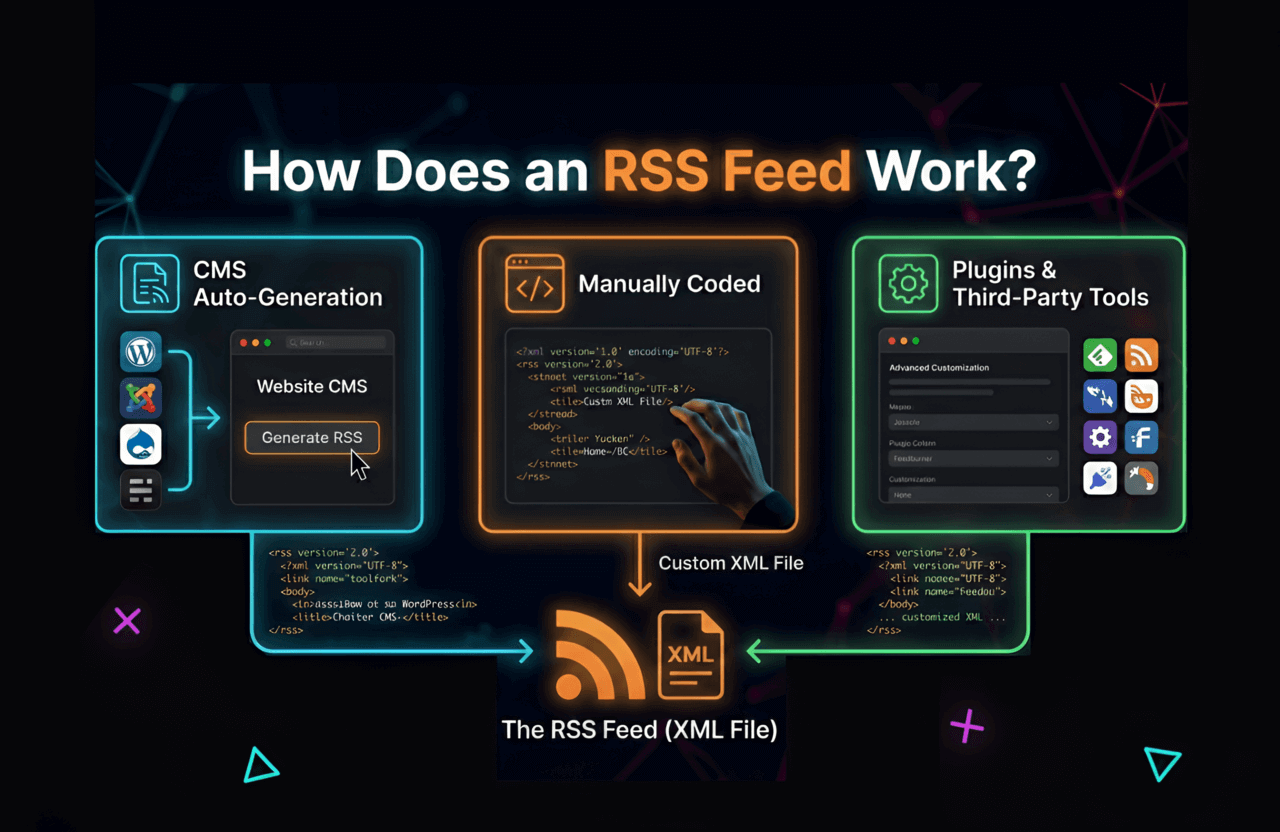
- Automatic: Most platforms like WordPress or Ghost build it for you by default.
- Manual: You can literally code your own XML file if you’re a purist.
- Plugin-based: You can use extra tools to make your feed do fancy things, like adding specific images or filtering content.
Most sites have one main feed, but the pros often create separate feeds for specific categories or authors so people can subscribe to exactly what they want.
Should You Create or Display an RSS Feed?
When you hear people talk about "adding an RSS feed," they usually mean one of two things. You need to figure out which one you're trying to do:
- Publishing Your Own: This is for when you want people to follow *your* updates. You want them to "tune in" to your station.
- Displaying Someone Else's: This is for when you want to show a live news ticker or a list of recent podcasts from *other* sites on your own pages.
You can (and probably should) do both. If you want a bigger audience, focus on publishing. If you want to make your site a go-to resource for your niche, start embedding external feeds.
How to Add an RSS Feed to Your Website: Step-by-Step
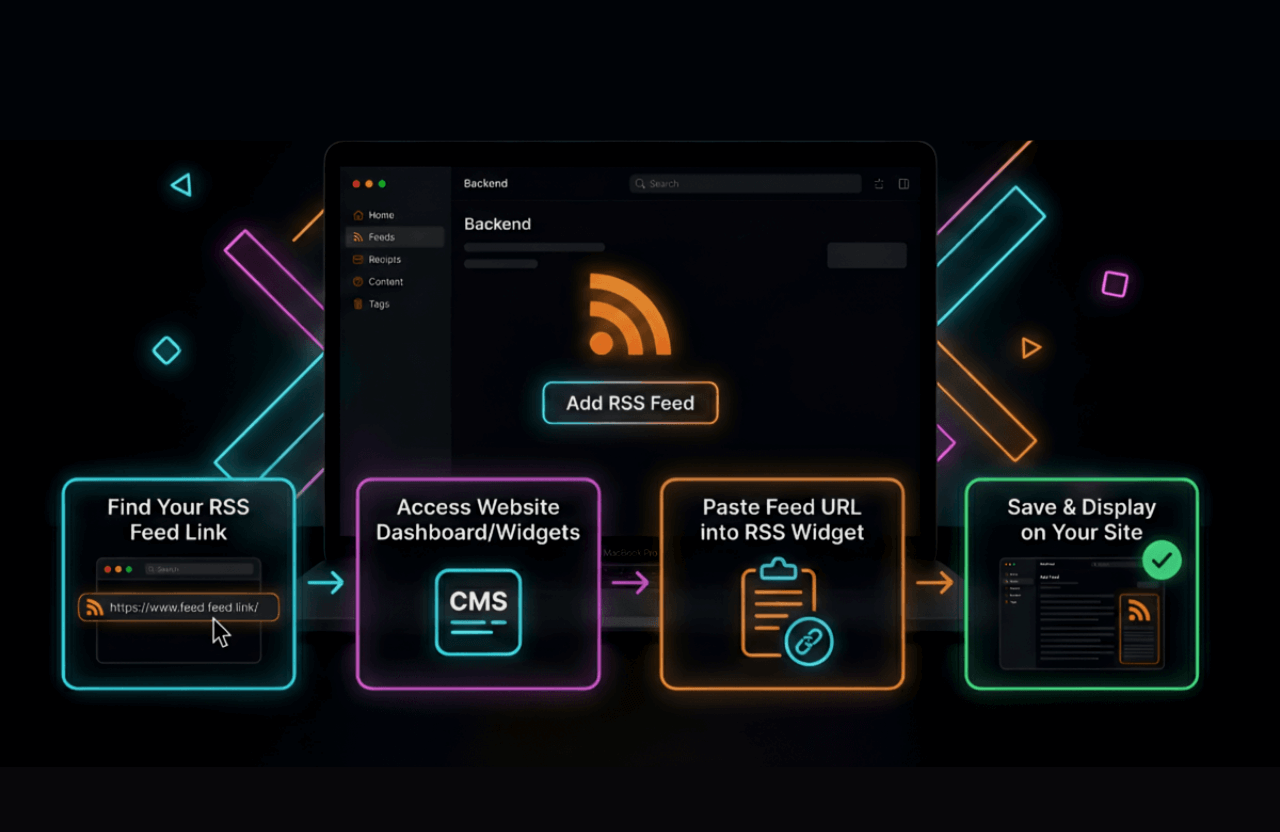
Let's get into the "how-to." Whether you're a WordPress fan or an HTML coder, here is how you get it live.
1. Creating and Publishing Your Own RSS Feed
The Easy Way: WordPress (and most CMS)
Good news: if you use WordPress, you almost certainly already have a feed. You just might not know the URL. Try these common paths:
https://yoursite.com/feed(The standard one)https://yoursite.com/category/news/feed(Just for your news category)https://yoursite.com/comments/feed(To track your site's discussions)
Type your URL followed by /feed into your browser. If you see a bunch of structured code, congrats—you're already an RSS publisher.
The "Old School" Way: Static HTML or Custom Sites
If you built your site from scratch with HTML, you'll have to create the XML file yourself. It sounds scary, but it looks something like this:
https://yoursite.com/ Latest updates from Your Site https://yoursite.com/article-url Mon, 01 Jan 2026 12:00:00 +0000 A quick, catchy summary of your new post. Save that as rss.xml, upload it to your main folder, and just remember to update it every time you post. If that sounds tedious, use a tool like RSS Board Validator to help you out.
How to Promote Your Feed
A feed is useless if nobody knows it's there. Here's how to get it found:
- Stick a bright RSS icon in your footer or sidebar.
- Put a special "link" tag in your HTML header so browsers can find it automatically.
- Submit your URL to news apps like Feedly or directories like Apple Podcasts.
SEO tip: Adding that little "link" tag in your code is a secret weapon for SEO. It helps bots and AI models find your content way faster than crawling the whole site.
2. Displaying an External RSS Feed on Your Website
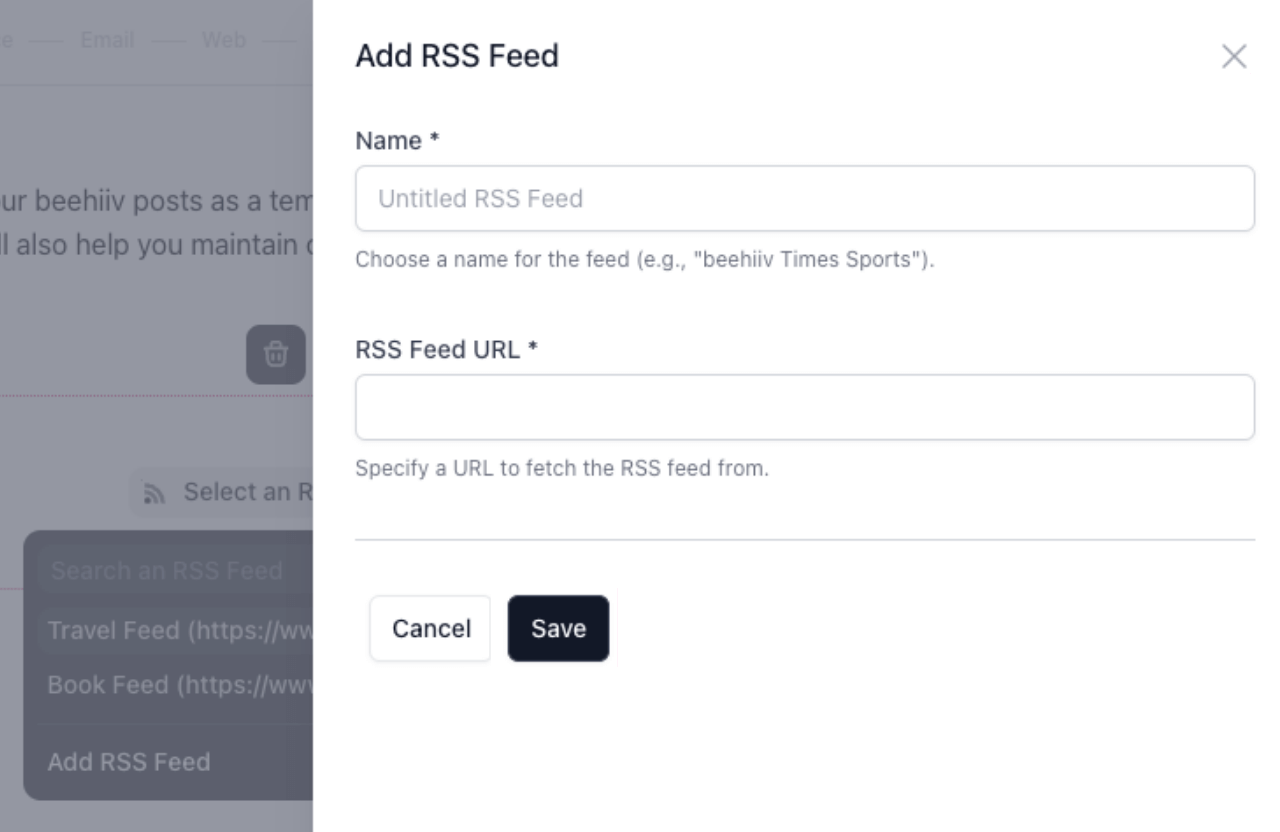
Want to show a "Latest Industry News" section on your site? You'll need to "embed" an external feed. Here is the easiest way to do it:
If you use WordPress
- The RSS Block: Just search for the "RSS" block in the editor. Paste the URL of the feed you want to show, and it’ll automatically list the latest posts.
- Advanced Plugins: If you want it to look fancy, use something like WP RSS Aggregator. It lets you style the feed to match your brand perfectly.
If you use HTML or JavaScript
- Widgets: Use a service like RSS.app. They give you a little snippet of code that you can just copy and paste wherever you want the feed to appear.
- Coding it: If you're a developer, you can use PHP (SimplePie) or Python (Feedparser) to pull the data and display it dynamically.
Pro tip: Don't be a content pirate! Always stick to showing headlines and short summaries. Posting someone else's full article in your feed is a quick way to get a legal headache.
Best Practices for Adding and Promoting Your RSS Feed
- Validate, validate, validate: Run your feed through the W3C Feed Validator. If your XML has a tiny typo, it could break for everyone.
- Write better titles: People scroll through feeds fast. If your title doesn't grab them, they won't click.
- Include images: Most modern readers can show thumbnails. Use "enclosure" tags to make your feed look professional and visual.
- Keep it fresh: If you haven't updated your feed in six months, people will unsubscribe. Consistency is the name of the game.
- Monitor your numbers: Use tools like FeedPress or Jetpack to see how many people are actually tuned in.
- Optimize for AI: Clean feeds are more likely to be used as sources by AI models like ChatGPT or Perplexity. Label everything accurately.
Further reading: Want to dive into the technical side of metadata? See our guide on Article vs BlogPosting Schema Markup.
Troubleshooting Common RSS Feed Issues
Tech happens. If your feed is acting up, it's usually one of these common culprits:
- "My feed isn't updating!" It’s usually a caching issue. Clear your site cache or check if your RSS plugin is set to refresh every hour instead of every minute.
- "The validator says my XML is broken!" This is usually caused by a weird character (like an un-encoded ampersand) in one of your post titles.
- "The images are missing!" Make sure your image URLs are "absolute" (starting with https://) rather than just relative paths.
- "Nobody can find my feed!" Check your
robots.txtfile. You might be accidentally telling Google to stay away from your feed folder.
Pro tip: If your WordPress feed suddenly dies, deactivate your plugins one by one. Nine times out of ten, a recent update is clashing with your feed code.
Advanced RSS Feed Tips
- Niche Down: Don't just offer one giant feed. Give people the option to subscribe only to your "Tutorials" or your "Company News."
- Podcast Ready: If you're doing audio, make sure your RSS feed has the specific "itunes" tags so you can get listed on Spotify and Apple.
- Email on Autopilot: Connect your RSS feed to Mailchimp or ConvertKit. Now, every time you post, an email newsletter goes out automatically. Zero extra effort.
- Zapier Magic: Use RSS to trigger actions. For example, "Every time I post to my blog, send a summary to my LinkedIn and a notification to my Discord."
Further reading: For more on how AI uses this data, check out ChatGPT Language Model Explained.
RSS Feed Security and Moderation
If you're displaying other people's feeds, be careful. You're basically letting their content live on your site:
- Spam Filters: Make sure you aren't pulling in a feed that's full of junk or inappropriate links.
- Speed: Don't try to load 50 external items at once, or your page will crawl. Stick to the latest 3-5.
- Safety: Always "sanitize" the HTML from an external feed so you don't accidentally let a malicious script run on your site.
RSS Feed Analytics and Performance
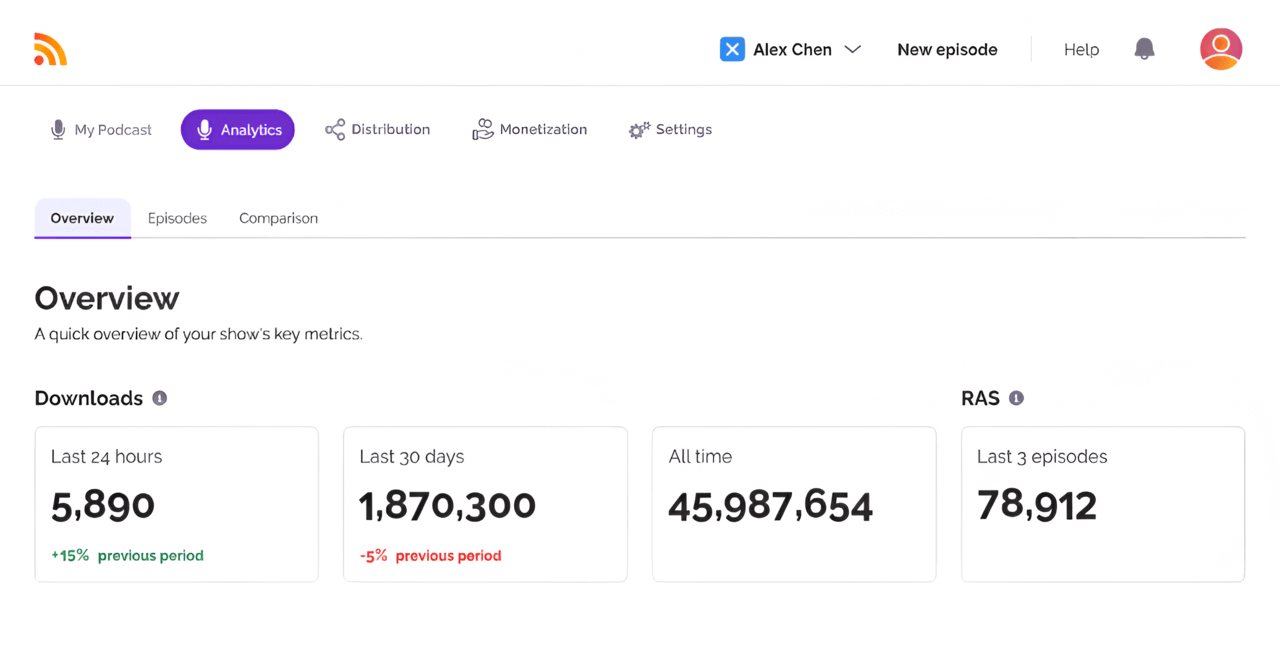
You can't improve what you don't measure. Pay attention to:
- Subscriber Count: Use a service that tracks "unique hits" to your feed file.
- Click-Through Rate (CTR): Which of your headlines actually get people to leave their feed reader and visit your site?
- Loading Speed: Keep your feed file small. If it gets too bloated with full-length articles and high-res photos, it’ll take forever to load.
RSS Feed and SEO: What You Need to Know
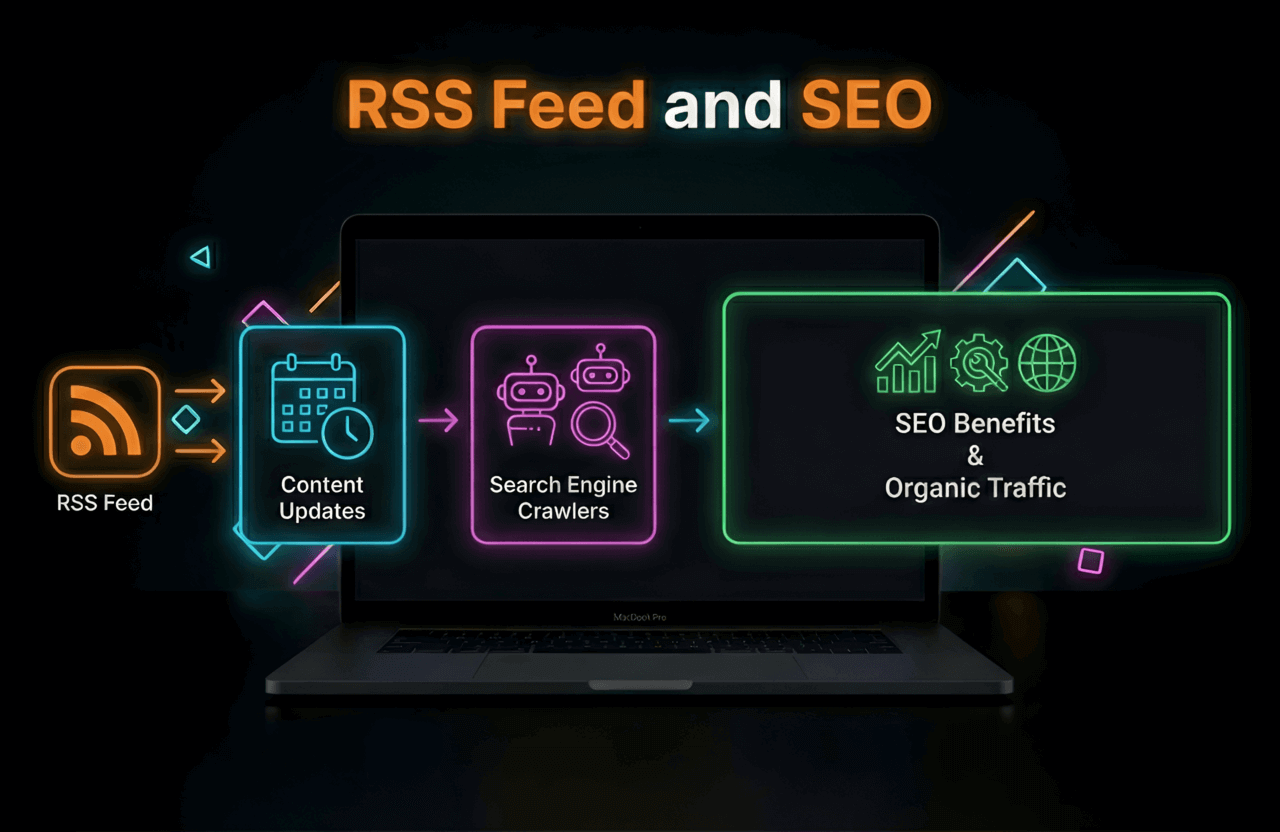
RSS doesn't give you a direct SEO "score," but it helps in a huge way behind the scenes. It's like grease for the SEO wheels:
- Instant Indexing: Google finds your new pages faster through a feed than by just wandering around your site.
- Referral Backlinks: When aggregators pick up your headlines, they link back to you. This builds authority over time.
- AI Citations: If an AI "Answer Engine" uses your feed to summarize a topic, it’ll usually link to you as the source.
Further reading: For more on getting your new site noticed, steal some tips from our SEO for New Website Checklist.
RSS Feed Tools and Plugins
Don't try to do everything by hand. Here is the toolkit the pros use:
- WordPress: WP RSS Aggregator (for displaying) and Feedzy (for importing).
- Widgets: RSS.app or Elfsight are great for non-WordPress sites.
- Analytics: FeedPress is the gold standard for tracking subscribers.
- Validation: W3C Feed Validator is your best friend for catching errors.
- Automation: Zapier or IFTTT to connect your feed to the rest of the web.
FAQ: Adding an RSS Feed to Your Website
What if my site doesn't have a feed?
Don't sweat it. You can use a third-party generator or a plugin to build one. Even if you're on a static site, you can manually create an XML file once and just keep it updated.
Can I choose what goes into my feed?
Absolutely. You can choose to show your full articles or just the first paragraph. Most people prefer "Partial Feeds" (summaries) because it forces the reader to visit your site to read the rest.
Is RSS still a thing in 2026?
More than ever. Between podcasts, news apps, and the rise of AI aggregators, RSS is the silent engine that keeps the modern web moving. It’s the ultimate "open" technology.
Ready to Add an RSS Feed to Your Website?
Adding an RSS feed is honestly one of the easiest and most effective ways to boost your site's reach. It’s a "set it and forget it" tool that builds your audience, automates your marketing, and keeps you visible to the latest search and AI engines.
Start by checking if you already have one (check /feed right now!). If not, use the tools we talked about to get it live. Make it visible, make it clean, and keep it updated.
The web is moving fast, and staying decentralized with RSS is the best way to make sure you're never at the mercy of a single platform. Go get that feed live!