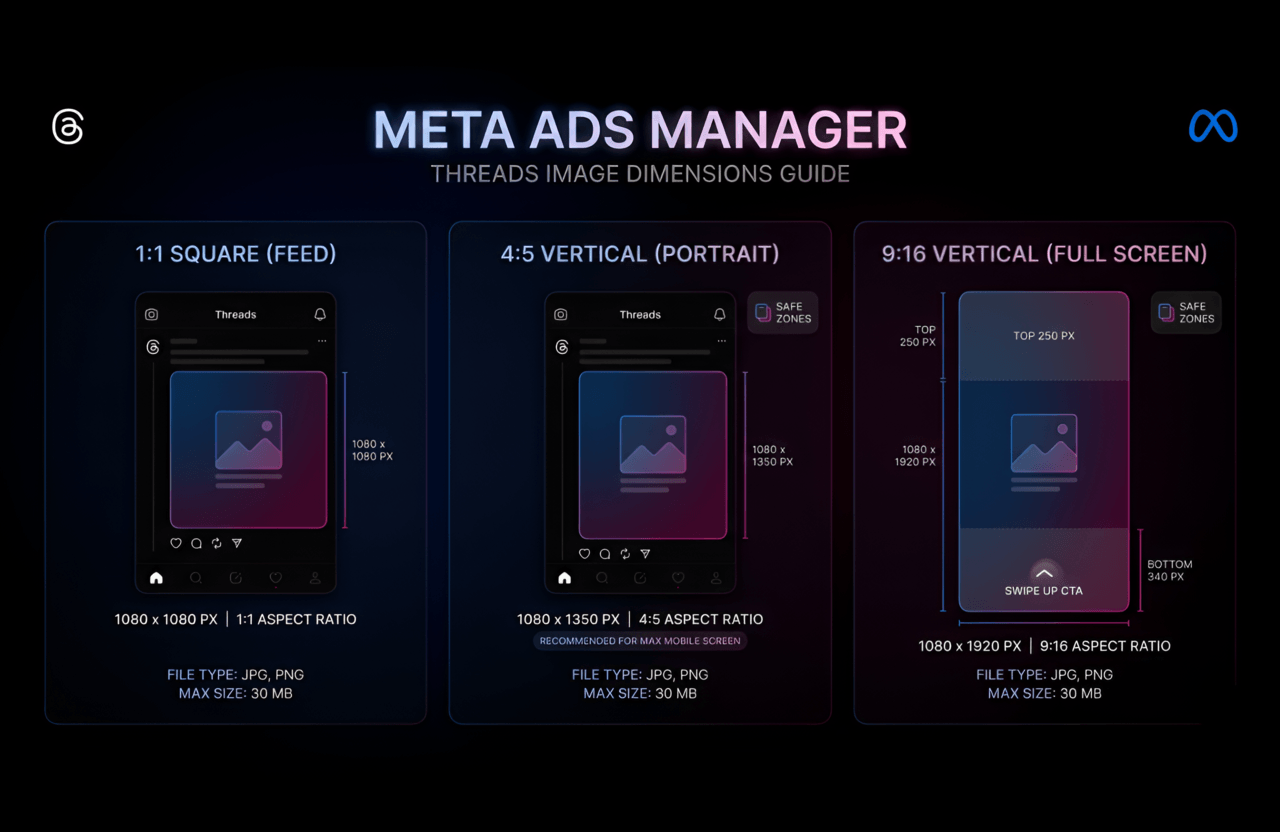
Let’s just call it like it is. Threads exploded out of nowhere, and now every advertiser on the planet is scrambling to grab a piece of that fresh, highly engaged audience. But here is the harsh reality: if you want your ads to actually stop the scroll and make people click, you absolutely have to nail your image dimensions. Close enough just doesn't cut it anymore.
Sure, Meta Ads Manager finally gave us that magical "Threads" placement checkbox. But the creative specs? Yeah, they are their own weird little beast. Toss in an image with the wrong aspect ratio, and suddenly you’re dealing with awkward cropping, pixelated garbage, or straight-up ad rejections from the system. Now that we're deep into 2026 and the feed is flooded with ad inventory, getting your specs right isn't just a suggestion; it's basic survival for marketers, designers, and agencies.
Consider this your ultimate cheat sheet for Meta Ads Manager Threads image dimensions. We are going to rip through:
- The exact image sizes and aspect ratios you actually need to use
- Why Threads acts totally different from your standard Instagram and Facebook feeds
- Design habits that actually print money on this specific platform
- The lazy, rookie mistakes that will completely tank your campaign
- A no-nonsense, step-by-step setup guide inside Ads Manager
- How to handle multi-platform campaigns without losing your mind
- Real-world examples and how to fix broken, rejected uploads
Quick reference: Just need the raw numbers? The absolute best Threads ad image size is 1080 x 1350 pixels (that's a 4:5 aspect ratio). Keep reading to find out exactly why, plus some advanced tricks.
Why Threads Image Dimensions Matter in 2026
Threads has rapidly mutated from a simple Twitter clone into a core pillar of the Meta empire, boasting well over 250 million active users in early 2026. Have you noticed how the feed feels? It's highly visual, incredibly fast, and Meta’s algorithm aggressively rewards content that feels native and immersive. If you mess up the image size, you risk:
- Looking cheap. Blurry or pixelated visuals instantly destroy brand trust.
- Having your core message or Call-to-Action (CTA) chopped in half by the auto-cropper.
- Burning money on poor ad performance and abysmal click-through rates.
- Getting slapped with a big red "Rejected" status in Ads Manager.
Because the Threads feed is a vertical, doom-scrolling paradise, it heavily favors tall images that eat up screen real estate. This makes your aspect ratio way more critical here than it is on Facebook.
Pro insight: Threads users can spot a repurposed, poorly cropped ad from a mile away. Native-feeling, perfectly sized vertical images will out-convert a generic square graphic every single time.
Official Meta Threads Image Dimensions (2026)
Alright, straight from the belly of the beast. As of 2026, Meta Ads Manager demands the following specs for Threads image ads:
- Image size: 1080 x 1350 pixels
- Aspect ratio: 4:5 (vertical portrait)
- Minimum width: 600 pixels (but honestly, stick to 1080 px or it's going to look like it was shot on a potato)
- Maximum file size: 30 MB
- Accepted formats: JPG, PNG (Sorry, animated GIFs are a hard 'no' for Threads placements right now)
- Recommended resolution: 72 DPI or higher
These rules apply whether you are running a single-image ad, a carousel, or boosting an organic post. If you try to force a different aspect ratio, Meta is going to auto-crop it. And trust me, the AI is terrible at guessing where your text is.
Tip: Just build your canvas at 1080 x 1350 px from the start. Even if you have a massive 4K asset, scale it down properly so it stays razor-sharp and loads instantly on mobile.
Threads Ad Image Safe Zones
You know what's annoying? Designing a gorgeous ad, only to have the app's "Like" and "Share" buttons cover up your logo. Keep all your critical text, logos, and CTA buttons huddled tightly within the central 80% of your image. Leave the top and bottom edges alone, because different phone screens will crop them slightly differently.
Threads vs Instagram vs Facebook Ad Image Sizes
Welcome to the nightmare of modern media buying. Meta’s ecosystem is huge, but every single app wants its own specific dimensions. Look at this breakdown:
| Platform | Recommended Size | Aspect Ratio |
|---|---|---|
| Threads | 1080 x 1350 px | 4:5 (vertical portrait) |
| Instagram Feed | 1080 x 1080 px | 1:1 (square) |
| Instagram Stories/Reels | 1080 x 1920 px | 9:16 (full portrait) |
| Facebook Feed | 1200 x 628 px | 1.91:1 (landscape) |
Can you technically upload one square image and let Meta blast it everywhere? Yes. Should you? Absolutely not. Best practice is carving out the time to export specific creatives for each platform so they actually look native.
Further reading: If you want to lose an afternoon to the technical weeds of cross-platform specs, dive into Meta’s official Ads Guide.
Step-by-Step: How to Set Up Threads Ad Images in Meta Ads Manager
- Start the right way: 1080 x 1350 px (4:5). Fire up Photoshop, Canva, Figma, whatever pays your bills. Do not guess the canvas size. Lock in that 4:5 ratio immediately.
- Chill out with the text. Keep it minimal and stay in the safe zones. Meta still hates it when an image is 90% text. Let the visual do the talking and keep your fonts huge and readable.
- Export cleanly. High-quality JPG or PNG. Try to keep it under 2 MB so it loads fast on bad cellular connections, but don't compress it so hard that it turns to mush.
- Dive into Ads Manager. Create a new campaign. Pick your poison (Engagement, Traffic, Conversions) and set up the ad set just like you always do.
- Check the Threads box. Under Placements, hit 'Manual Placements'. Uncheck the junk you don't want and make sure 'Threads' is ticked.
- Upload and scrutinize the preview. Drop in your 1080 x 1350 px file. Use the built-in preview tool. Click through the mockups. If anything looks cropped or weird, fix it now.
- Write the hook. Drop in a punchy headline and some solid primary text. Pick a CTA button that actually makes sense for your funnel.
- Hit publish. Cross your fingers, make sure you didn't violate any of Meta's notoriously vague ad policies, and launch that thing.
Pro tip: If you are completely out of time and only have a square image, use Meta’s native Image Cropper in the ad setup level. It's not perfect, but it'll save you in a pinch.
Best Practices for High-Performing Threads Ad Images
- Embrace the vertical scroll. People move fast on Threads. A tall 4:5 image physically takes up more of their screen, literally forcing their thumb to stop longer. Exploit that.
- Contrast is king. You are fighting against a sea of text. Use bold, jarring colors to break the visual monotony of the feed.
- Stop writing essays on your images. Seriously. If you have that much to say, put it in the caption. Cluttered images tank your engagement rate.
- A/B test ruthlessly. Don't just guess. Run an image with a human face against a stark product close-up. Let the data tell you what Threads users actually want.
- Have one clear focal point. The user should know exactly what they are looking at in 0.5 seconds.
- Mobile. First. Always. Something like 95% of people are looking at this app on a phone. If it looks bad on a 6-inch screen, it's a bad ad.
- Play by the rules. Read Meta's policies. No fake buttons, no overly sensational images. Don't risk the ban hammer.
Advanced tip: While you can use slick animations for Stories, remember that right now, Threads feed ads are strictly static images. Save the motion graphics for Reels.
Common Threads Ad Image Mistakes to Avoid
- Being lazy with squares or landscapes. Auto-cropping will ruin your design. Just don't do it.
- Exporting low-res garbage. Pixelation screams "scammy drop-shipper." Protect your brand image.
- Pushing logos to the absolute edge. The app UI will overlay right on top of it. Give your design room to breathe.
- Ignoring the 80% safe zone rule. Critical info goes in the middle. Period.
- Uploading massive 30 MB raw files. Yes, it's the limit, but it's going to load so slowly that the user will scroll past before it even renders.
- Recycling 9:16 Reels directly into Threads. That 1080 x 1920 px file is going to get brutally chopped at the top and bottom.
Advanced Tips for Multi-Platform Meta Ad Campaigns
- Do the extra work. Make a 1:1 for IG, a 4:5 for Threads, and a 9:16 for Stories. It takes an extra ten minutes in Canva but drops your CPA massively.
- Let the machine learn. Use Meta’s Dynamic Creative. Dump in three image variations and let the AI figure out which one the Threads algorithm likes best.
- Test the weird stuff. Play with weird aspect ratios, loud colors, and different text placements. Threads is a newer audience; figure out what makes them tick.
- Check your breakdowns. Inside Ads Manager, slice your data by Placement. Is Threads actually driving cheaper clicks than Facebook? You need to know that.
- Burnout is real. Ad fatigue hits fast on text-heavy apps. Swap out your creative assets every few weeks before your audience goes completely blind to them.
Further reading: Want to step back and look at the bigger picture? Check out our breakdown on SEO Onpage vs Offpage Optimization to make sure your landing pages actually convert those clicks.
Real-World Examples of Threads Ad Image Dimensions
- The E-com Brand: Swapped out their lazy square catalog shots for custom 1080 x 1350 px vertical lifestyle images. The result? A 32% spike in CTR purely because the ad took up more screen space.
- The SaaS Launch: Ran a super clean, vertical graphic with heavy negative space and the CTA dead-center. Kept everything in the safe zones and saw an 18% drop in Cost Per Install specifically on Threads.
- The Local Event: Built a digital flyer specifically at 4:5. Because they planned for the crop, none of the dates or venue info got cut off like it did in their messy Facebook campaign last year.
Troubleshooting Threads Ad Image Issues in Meta Ads Manager
- "Why does this look like a blurry mess?" You probably exported it too small and Meta stretched it. Make sure your base file is exactly 1080 x 1350 px. Try exporting as PNG if your text looks crunchy.
- "My text got chopped off." Stop putting it at the top margin. Drag everything back into the center 80% and check the preview tool again.
- "Meta rejected my ad." The algorithm probably thinks your image is mostly text. Strip out the paragraphs, leave a five-word hook, and try submitting it again.
- "It won't even upload." Your file is either way over 30 MB or you accidentally saved it as a weird format. Stick to standard JPGs or PNGs under 5 MB.
Meta Threads Image Dimensions FAQ
What is the absolute best image size for Threads ads right now?
Don't overthink it: 1080 x 1350 pixels. It gives you that tall, beautiful 4:5 aspect ratio that dominates the mobile screen without getting cropped.
Can I just use my Instagram posts for Threads?
You *can*, but you shouldn't. Threads thrives on that 4:5 vertical look. If your IG feed is all 1:1 squares, they are going to look small and easily skippable on the Threads feed.
Can I run GIFs or Videos on Threads feed ads?
Nope. As of 2026, the feed ads are strictly static images. If you have killer video assets, route that budget over to Instagram Reels or Stories instead.
Does Meta still penalize ads with too much text?
Yeah, they definitely do. The official recommendation is to keep text under 20% of the total image area. If it looks like a PowerPoint slide, it's going to get terrible delivery.
Your Threads Ad Image Dimensions Checklist
- Set canvas to 1080 x 1350 px (4:5 ratio). Check.
- Export as a crisp JPG or PNG. Check.
- Keep the file size reasonable (under 30 MB). Check.
- Shove all the important text into the middle safe zone. Check.
- Click through the Ads Manager previews obsessively before hitting publish. Check.
- Watch the metrics and be ready to swap the image if it bombs. Check.
Follow these rules, and your Threads ads are going to look sharp, load instantly, and actually pull their weight in your ad account.
Ready to Optimize Your Threads Ads?
Threads is moving incredibly fast, and because it's so visually focused, your image quality is literally the only thing standing between a scroll and a sale. Use this guide as your permanent cheat sheet for Meta Ads Manager in 2026.
If you want to make sure the rest of your digital footprint is performing just as well, go dive into our SEO for New Website Checklist or figure out How To Get Backlinks For Your Website so you don't have to rely entirely on paid ads.
Stop guessing with your ad creative. Build it to the right specs, launch it, and watch the numbers go up.