RSS feeds remain one of the most powerful tools for curating and consuming content efficiently, even in 2026. If you want to take control of your news, blogs, and industry updates, Feedly is still the go-to RSS reader for millions of users worldwide.
But here’s the thing:
While Feedly’s interface is intuitive, many people struggle with adding custom RSS feeds, organizing their sources, and troubleshooting when things go wrong. Whether you’re a beginner or a power user, understanding how to add RSS feeds to Feedly and optimize your reading experience can save you hours each week and ensure you never miss critical updates.
This guide covers everything you need to know about adding RSS feeds to Feedly in 2026, including step-by-step instructions, best practices, and expert tips for managing your content sources.
Pro tip: Want to automate even more of your content workflow? Feedly integrates with tools like Zapier, IFTTT, and n8n for advanced automation. Learn more about self-hosted n8n open source automation benefits to supercharge your setup.
What Is an RSS Feed and Why Use Feedly?
RSS (Really Simple Syndication) is a standardized format for delivering regularly updated content from websites, blogs, podcasts, and news sources. An RSS feed is a file that contains a list of recent articles or posts, each with a title, summary, and link.
Feedly is a modern RSS reader that lets you subscribe to these feeds, organize them into categories, and read updates in a distraction-free environment. It supports both RSS and Atom feed formats, making it compatible with virtually any site that offers a feed.
- Centralized reading: Aggregate all your favorite blogs, news, and research in one dashboard.
- Custom organization: Group feeds by topic, project, or priority for faster scanning.
- Distraction-free: Avoid algorithmic feeds and ads see only what you subscribe to.
- Cross-device sync: Access your feeds on desktop, mobile, or tablet with seamless syncing.
Further reading: Want to explore other search and discovery tools? Check out our guide to the best search engines other than Google.
How to Find an RSS Feed URL
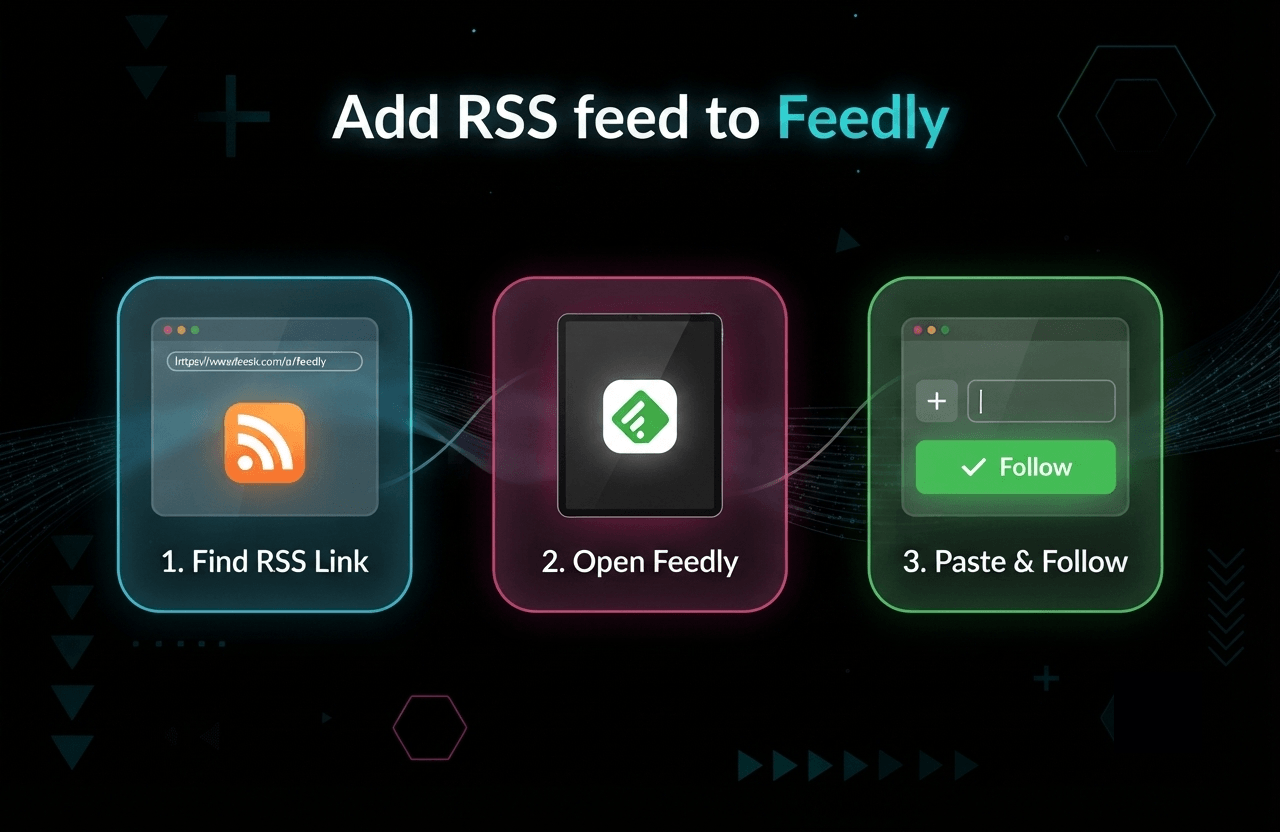
The first step to adding any source to Feedly is finding its RSS feed URL. Here’s how to do it, even if the site doesn’t display a visible RSS icon:
- Look for the RSS icon: Many sites have an orange RSS symbol or a link labeled 'RSS,' 'Feed,' or 'Subscribe.' Right-click and copy the link address.
- Check the footer or sidebar: Some sites place their feed links in less prominent areas.
- View page source: On the site’s homepage, right-click and select 'View Page Source.' Search for 'rss,' 'atom,' or 'feed.' Look for a tag with a type like 'application/rss+xml' or 'application/atom+xml.'
- Guess common feed URLs: Try adding '/feed', '/rss', or '/atom' to the end of the site’s URL (e.g., example.com/feed).
- Use a feed discovery tool: Online tools like Feedly’s RSS Builder or browser extensions can help uncover hidden feeds.
If the site doesn’t offer an RSS feed, consider using a third-party service like RSS.app or FetchRSS to generate one from a page’s updates.
Pro tip: For content creators, offering a clear RSS feed can help you get more subscribers and improve your visibility in AI-powered search engines. Learn more about how to add an RSS feed to your website.
Step-by-Step: How to Add an RSS Feed to Feedly
- Log in to Feedly: Open feedly.com or the Feedly app. Sign in with your Google, Apple, or Feedly account.
- Click “Add Content” or the “+” Button: On the left sidebar, look for the 'Add Content' button or a '+' icon.
- Paste the RSS Feed URL: In the search bar, paste the feed URL you copied earlier. Press Enter.
- Select the Feed: Feedly will display the feed’s name, description, and recent posts. Click on the feed to preview its content.
- Click “Follow” or “Add”: To subscribe, click the 'Follow' or 'Add' button.
- Choose a Category (Optional): Select an existing category (folder) or create a new one to organize your feed. Categories help you group similar sources for easier reading.
- Finish and Start Reading: The feed will appear in your sidebar under the chosen category. Click it to see the latest articles.
Note: You can add as many feeds as you like. Free Feedly accounts have a limit on the number of sources and categories, while Pro and Teams plans offer unlimited feeds and advanced features.
Organizing and Managing Your Feeds in Feedly
Feedly’s real power comes from its organizational features. Here’s how to make the most of them:
- Categories (Folders): Group feeds by topic, project, client, or priority. For example, create folders like 'Tech News,' 'Marketing,' 'Personal Blogs,' or 'Competitors.'
- Boards: Save important articles to Boards for future reference, research, or sharing with your team.
- Mute or Remove Feeds: If a source becomes noisy or irrelevant, mute it temporarily or remove it from your list.
- Sort by Popularity or Recency: Use Feedly’s sorting options to see the most popular or most recent articles first.
- Tagging: Add custom tags to articles for easier retrieval and workflow automation.
Further reading: For a detailed checklist on optimizing your content discovery, see our SEO for new website checklist.
Troubleshooting Common RSS Feed Issues in Feedly
Sometimes, adding a feed doesn’t go as planned. Here are common issues and how to resolve them:
- Feed Not Found: Double-check the URL for typos. Make sure it points to a valid RSS or Atom feed (it should end in .xml, /feed, /rss, etc.).
- Feed Not Updating: Some feeds update infrequently, or the source website may have issues. Try refreshing the feed or removing and re-adding it. If the problem persists, the feed may be broken.
- Duplicate Articles: This can happen if you subscribe to multiple feeds from the same site. Consolidate to a single main feed if possible.
- Feed Shows as “Unavailable”: The source may have restricted access, changed its feed URL, or blocked Feedly’s crawler. Check the website for updates or contact the site owner.
- Feed Formatting Issues: Some feeds may display poorly if they’re not well-formed XML. Use a feed validator like W3C Feed Validator to check for errors.
Tip: If you’re managing multiple sites or feeds, use a plagiarism checker to ensure your content remains unique and avoid duplicate issues in your own feeds.
Advanced Tips for Power Users
- Use Feedly Pro Features: Upgrade for advanced search, unlimited feeds, Google News keyword alerts, and integration with automation tools like Zapier and n8n.
- Keyword Alerts: Create keyword alerts to track mentions of specific topics, brands, or competitors across the web.
- Team Collaboration: Feedly Teams lets you share boards, notes, and highlights with colleagues ideal for agencies, research teams, or editorial workflows.
- Mobile Optimization: Use the Feedly app on iOS or Android for reading on the go. Enable offline reading for uninterrupted access.
- Export/Import OPML: Export your feed list as an OPML file for backup or to migrate to another reader. Import OPML files to quickly add multiple feeds.
Further reading: For more on automation and workflow optimization, see our guide to migrating complex multi-step scenarios from Zapier to Make.
How to Add Non-Standard or Custom Feeds
Some sites don’t offer a traditional RSS feed. Here’s how to handle those cases:
- Use RSS Generators: Tools like RSS.app, FetchRSS, or FiveFilters can create a feed from almost any web page, including YouTube channels, Twitter lists, or news sections.
- Monitor Social Media: While Feedly doesn’t natively support all social platforms, you can use third-party services to convert public profiles or hashtags into RSS feeds and add them to Feedly.
- Custom Web Scraping: For advanced users, set up a custom scraper (using Python, n8n, or similar) to generate a feed from structured data or API endpoints.
Note: Always respect copyright and terms of service when generating custom feeds. For more on copyright and web content, see does copyright apply to screenshot images?.
Feedly vs. Other RSS Readers
Feedly remains the most popular RSS reader for individuals and teams, but there are alternatives worth considering:
- Inoreader: Offers powerful filtering, rules, and offline reading.
- NewsBlur: Focuses on training and filtering feeds based on your reading habits.
- The Old Reader: Simple, Google Reader-style interface for minimalists.
- Self-hosted options: Tools like Tiny Tiny RSS or FreshRSS for privacy and full control.
Feedly stands out for its clean UI, robust mobile apps, and integration with productivity tools. For most users in 2026, it remains the best balance of power and usability.
Best Practices for RSS Feed Management in 2026
- Review Your Feeds Regularly: Prune inactive or low-value feeds every few months to keep your reading list focused.
- Use Categories Wisely: Don’t overload a single folder. Break out by topic or urgency (e.g., 'Must Read,' 'Industry News,' 'Inspiration').
- Leverage Boards and Tags: Save and tag articles for research, future reference, or sharing with your team.
- Automate Routine Tasks: Use Feedly’s integrations to send articles to tools like Evernote, Pocket, or Slack, or to trigger workflows in Zapier or n8n.
- Stay Informed on Feed Changes: Some sites change their feed URLs or structure. If a feed stops working, revisit the site or use a feed discovery tool to find the new link.
Tip: For bloggers and publishers, adding RSS feeds to Feedly can help you monitor your own content’s reach and spot opportunities for getting backlinks for your website.
FAQ: Adding RSS Feeds to Feedly
Can I add any website’s RSS feed to Feedly?
Yes, as long as the site provides a valid RSS or Atom feed. If you encounter issues, double-check the feed URL or use a feed generator for sites without native feeds.
How many feeds can I add to Feedly?
Free accounts have a limit (usually 100 sources and 3 categories as of 2026). Pro and Teams plans offer unlimited feeds, advanced search, and additional features.
Why is my feed not updating?
Feeds may not update if the source site is down, the feed is invalid, or there are temporary network issues. Try refreshing, re-adding, or validating the feed. Persistent issues may require contacting the site owner.
Can I import/export my feeds?
Yes. Use the OPML import/export feature in Feedly’s settings to back up your subscriptions or migrate to another reader.
Does Feedly support private or password-protected feeds?
Feedly supports some private feeds, such as those from paid newsletters or membership sites, if you provide authentication. Check Feedly’s help docs for supported formats and login methods.
Ready to Master Your Content with Feedly?
Adding RSS feeds to Feedly is one of the simplest ways to take control of your information diet in 2026. Whether you’re tracking industry news, monitoring competitors, or curating inspiration, Feedly’s flexible platform makes it easy to stay organized and up to date.
Start by adding your favorite sites, organize them into meaningful categories, and experiment with Boards, tags, and automation to streamline your workflow. With a little setup, you’ll save hours each week and never miss a critical update again.
Want to go deeper? Explore our guides on SEO onpage vs offpage optimization and keyword research to further enhance your digital strategy.
Happy reading and welcome to the future of content curation!